> ## Documentation Index
> Fetch the complete documentation index at: https://docs.customei.com/llms.txt
> Use this file to discover all available pages before exploring further.
# Your files
> Every file you have uploaded, what each one is used by, and how to delete or enlarge one safely.
The **Files** tab on Assets is the raw list: one row per file you have ever uploaded, no matter which library it ended up in. Libraries are how you organise things for your customers; Files is where you check what you actually have.
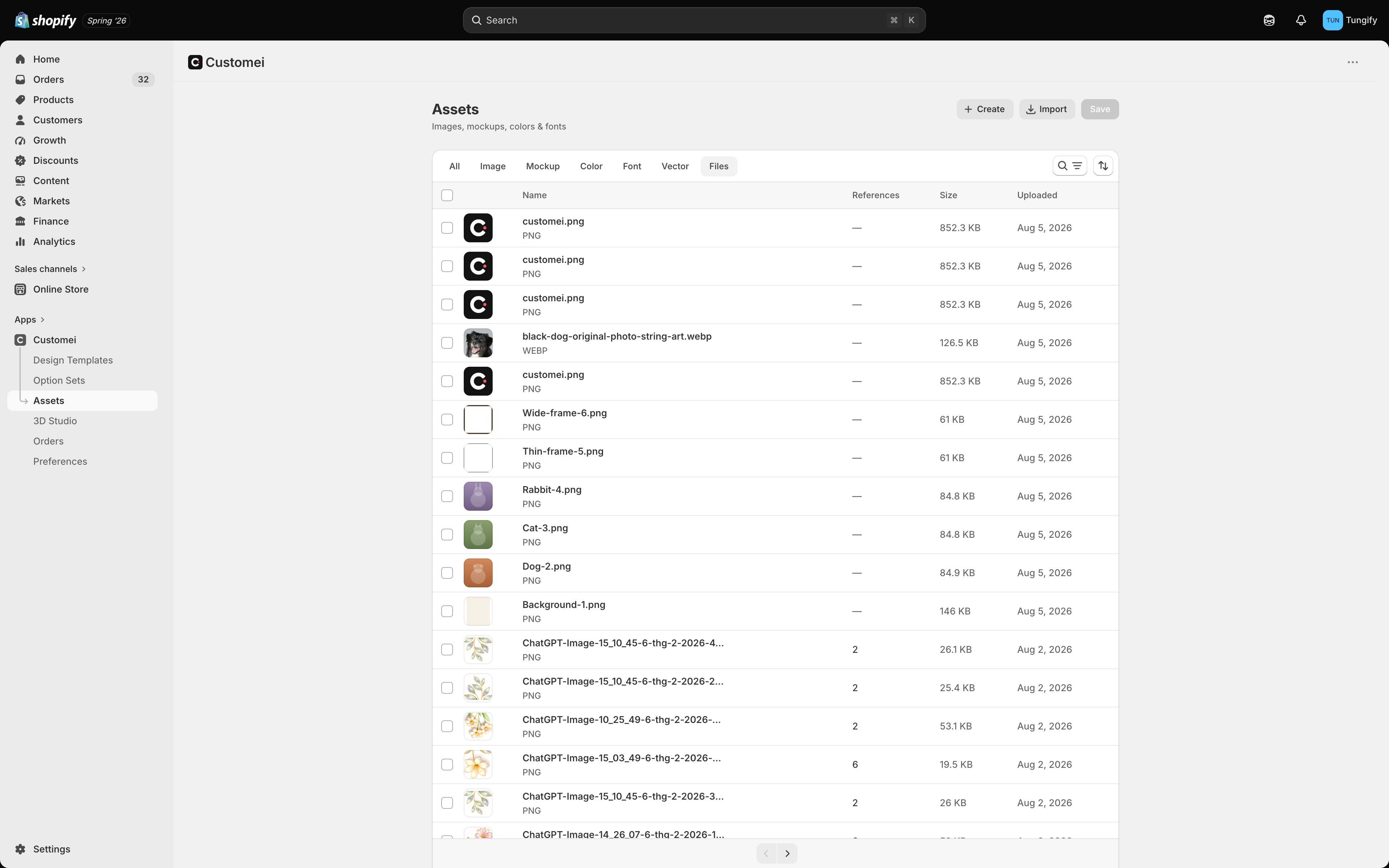 | Column | What it tells you |
| -------------- | ------------------------------------------------------------------------------- |
| **Name** | The file name and its format. Click the row to see it full size |
| **References** | How many libraries and option sets use this file. Click the number for the list |
| **Size** | How heavy the file is |
| **Uploaded** | When it arrived |
Search by name with the search icon above the table.
## Check what uses a file first
Click the number in **References** before you touch anything.
| Column | What it tells you |
| -------------- | ------------------------------------------------------------------------------- |
| **Name** | The file name and its format. Click the row to see it full size |
| **References** | How many libraries and option sets use this file. Click the number for the list |
| **Size** | How heavy the file is |
| **Uploaded** | When it arrived |
Search by name with the search icon above the table.
## Check what uses a file first
Click the number in **References** before you touch anything.
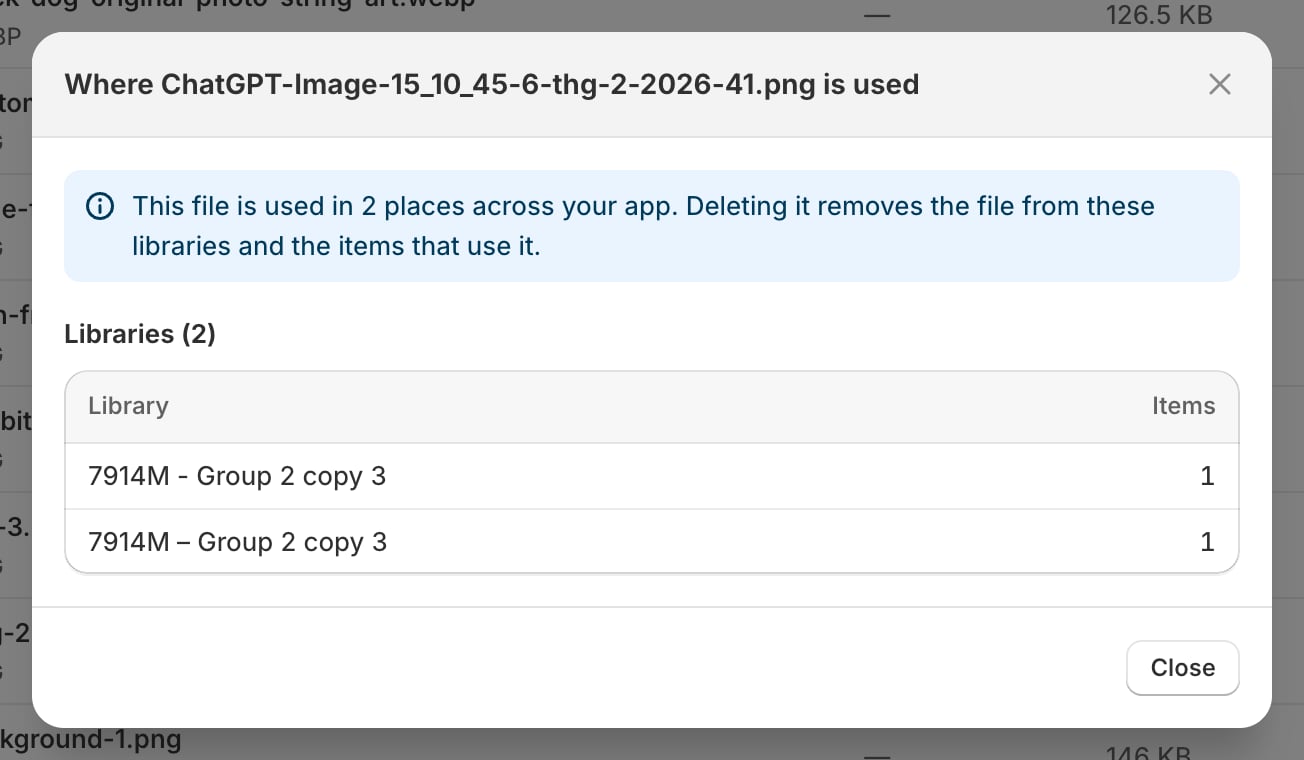 The same file can be in several libraries at once, and each of those libraries can feed several option sets. This list is the only place that shows you the whole reach in one go.
## Delete a file
Tick one or more rows and choose **Delete file**.
Customei checks what depends on it and tells you before you confirm: how many libraries hold it, how many items would disappear, and which option sets use it. The button then reads **Delete and remove items** rather than a bare Delete, so it's clear this reaches further than the file itself.
Deleting a file removes it from every library that holds it, and any option-set choice using it loses its picture. There is no trash for files. Read the list in the dialog before you confirm.
## Make a picture bigger
A picture that looked fine on screen can be too small to print. Tick it and choose **Upscale image**. The dialog shows the picture with its format and size, and two settings:
| Setting | What it does |
| --------------- | -------------------------------------------------------- |
| **AI provider** | Which service does the work: Replicate or fal.ai |
| **Size** | **2x**, **4x**, or **Custom** and type a width in pixels |
Then **Upscale**. It runs in the background, so you can close the dialog and come back.
The bigger picture **replaces the original**, everywhere that file appears, and it cannot be undone. If you might want the original, download it first.
Two things the dialog tells you before you run it:
* **Who pays.** With your own key set up under Preferences → Integrations, the run uses your account with that service and costs you no credits. Without one it uses the shared key included with your plan, and each picture spends credits.
* **When it would shrink instead.** Ask for a width that isn't bigger than the original and Customei blocks the run, because replacing in place would make the picture worse for good.
Only ordinary photo-style pictures can be enlarged. Vector artwork is left out on purpose: swapping an `.svg` for a photo-style copy would lose the very thing that makes it print at any size.
## Where to next
Back to the storeroom.
Add more pictures, fonts and colours.
The same file can be in several libraries at once, and each of those libraries can feed several option sets. This list is the only place that shows you the whole reach in one go.
## Delete a file
Tick one or more rows and choose **Delete file**.
Customei checks what depends on it and tells you before you confirm: how many libraries hold it, how many items would disappear, and which option sets use it. The button then reads **Delete and remove items** rather than a bare Delete, so it's clear this reaches further than the file itself.
Deleting a file removes it from every library that holds it, and any option-set choice using it loses its picture. There is no trash for files. Read the list in the dialog before you confirm.
## Make a picture bigger
A picture that looked fine on screen can be too small to print. Tick it and choose **Upscale image**. The dialog shows the picture with its format and size, and two settings:
| Setting | What it does |
| --------------- | -------------------------------------------------------- |
| **AI provider** | Which service does the work: Replicate or fal.ai |
| **Size** | **2x**, **4x**, or **Custom** and type a width in pixels |
Then **Upscale**. It runs in the background, so you can close the dialog and come back.
The bigger picture **replaces the original**, everywhere that file appears, and it cannot be undone. If you might want the original, download it first.
Two things the dialog tells you before you run it:
* **Who pays.** With your own key set up under Preferences → Integrations, the run uses your account with that service and costs you no credits. Without one it uses the shared key included with your plan, and each picture spends credits.
* **When it would shrink instead.** Ask for a width that isn't bigger than the original and Customei blocks the run, because replacing in place would make the picture worse for good.
Only ordinary photo-style pictures can be enlarged. Vector artwork is left out on purpose: swapping an `.svg` for a photo-style copy would lose the very thing that makes it print at any size.
## Where to next
Back to the storeroom.
Add more pictures, fonts and colours.