> ## Documentation Index
> Fetch the complete documentation index at: https://docs.customei.com/llms.txt
> Use this file to discover all available pages before exploring further.
# Tell your systems about new orders
> Have Customei notify your own tools the moment a personalized order comes in, and check every notification it sent.
Customei can tell your own systems as soon as something happens to a personalized order. Your fulfilment tool picks the order up on its own, and nobody has to retype anything.
In the app these are called **webhooks**. All that means is: you give Customei a web address, and Customei sends a message to it when something happens.
This is the one page in these docs that needs someone technical. You choose what gets sent and when; a developer sets up the address that receives it. If you don't have one, [support@customei.com](mailto:support@customei.com) can point them at what they need.
## Set one up
Go to **Preferences**, open the **Integrations** tab, and find the **Webhooks** card at the bottom.
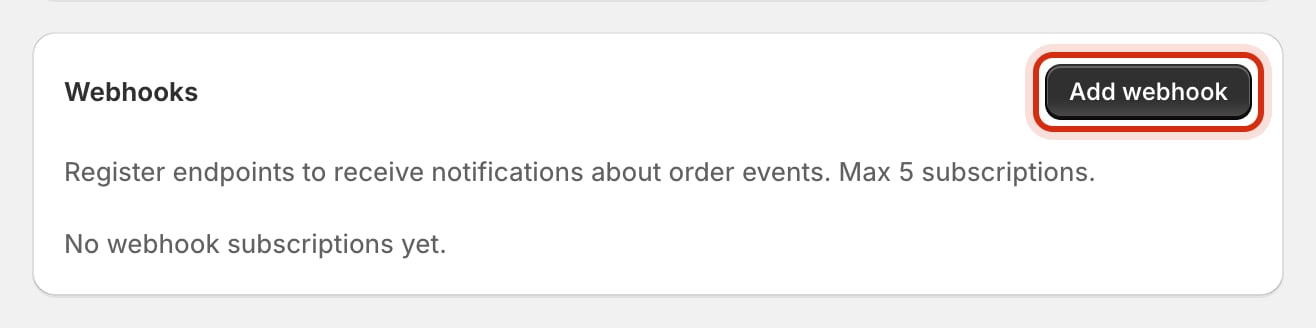 Click **Add webhook**.
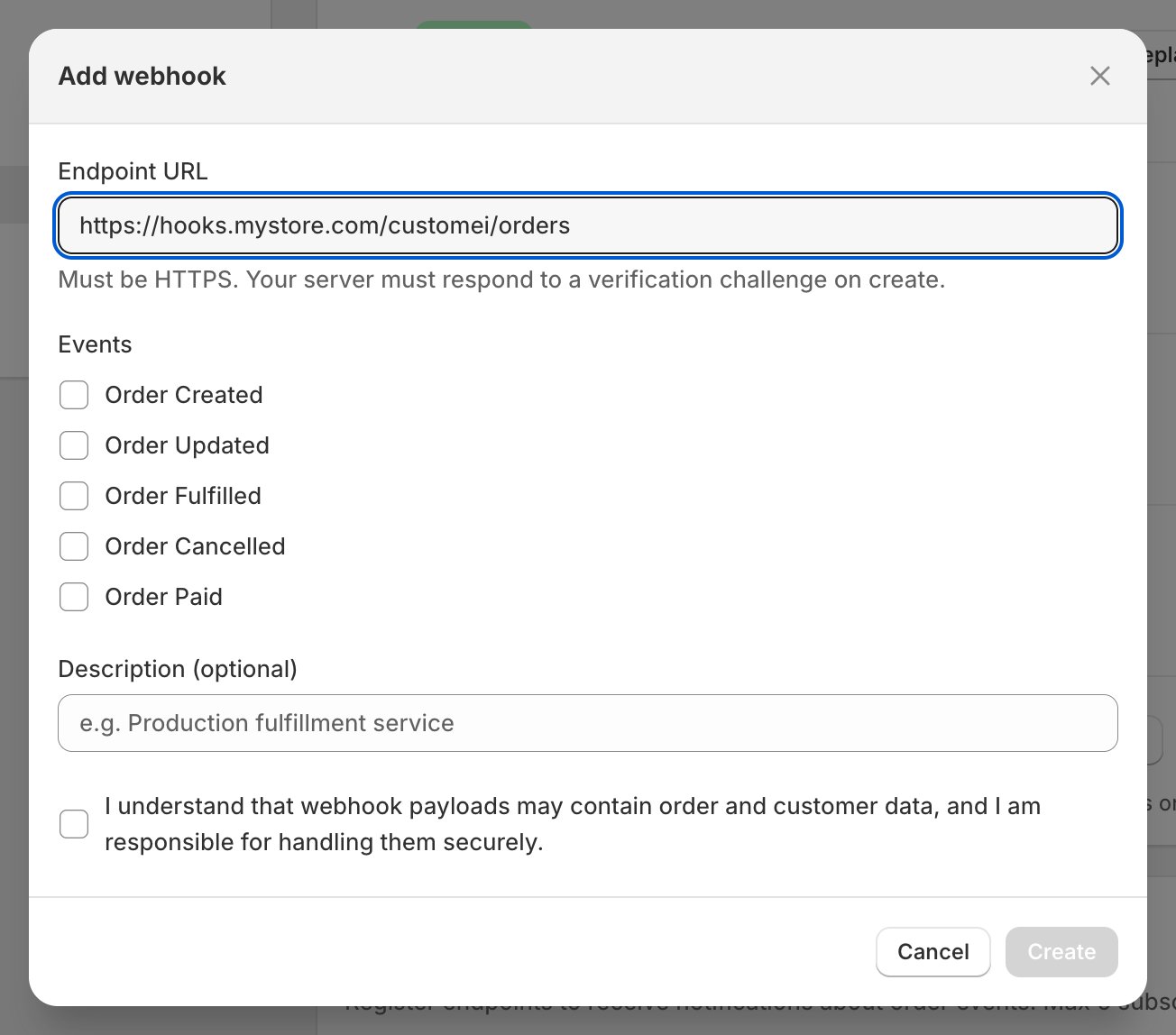 Your developer gives you this. It has to start with `https://`.
Five to choose from: when an order is **created**, **updated**, **paid**, **fulfilled**, or **cancelled**. Tick only what your tool actually reacts to.
The description is optional, but "Production fulfilment service" beats a bare address in six months' time.
Order notifications include order and customer details, so you tick to say you'll handle them properly.
Customei sends a quick test to the address to make sure something is really listening. If nothing answers correctly, the address is rejected and nothing is saved.
As soon as it's created, Customei shows you a **signing secret** once. Your developer needs it to check that a message really came from Customei. Copy it before you close the banner, because it is never shown in full again.
You can have up to **five** addresses. Once you have five, **Add webhook** stops working until you delete one.
## Check that it's working
Each row in the card shows the address, the events it's subscribed to, and whether it's **Active** or **Disabled**. Click the address to open it.
Inside you get:
* **Deliveries, last 30 days.** How many messages succeeded and how many failed, with a bar chart by day.
* **The delivery log.** Every attempt: which event it was, what set it off, whether it worked, the answer that came back, and when. Failed rows have a **Retry** button, so a message lost while your server was down doesn't have to be lost for good.
* **Disable** and **Enable**, for turning an address off without deleting it. Handy while your developer works on it.
If an address fails 50 times in a row, Customei switches it off by itself and tells you on the Integrations tab. Nothing more is sent to it until someone fixes the address and turns it back on. Check the delivery log first, so you turn it back on for a reason rather than out of hope.
## Delete one
Use the bin icon on its row and confirm. It stops immediately and can't be undone. The address has to be set up again from scratch if you change your mind, including a new signing secret.
## Where to next
The rest of the Integrations tab.
Another way to reach your account from outside.
Your developer gives you this. It has to start with `https://`.
Five to choose from: when an order is **created**, **updated**, **paid**, **fulfilled**, or **cancelled**. Tick only what your tool actually reacts to.
The description is optional, but "Production fulfilment service" beats a bare address in six months' time.
Order notifications include order and customer details, so you tick to say you'll handle them properly.
Customei sends a quick test to the address to make sure something is really listening. If nothing answers correctly, the address is rejected and nothing is saved.
As soon as it's created, Customei shows you a **signing secret** once. Your developer needs it to check that a message really came from Customei. Copy it before you close the banner, because it is never shown in full again.
You can have up to **five** addresses. Once you have five, **Add webhook** stops working until you delete one.
## Check that it's working
Each row in the card shows the address, the events it's subscribed to, and whether it's **Active** or **Disabled**. Click the address to open it.
Inside you get:
* **Deliveries, last 30 days.** How many messages succeeded and how many failed, with a bar chart by day.
* **The delivery log.** Every attempt: which event it was, what set it off, whether it worked, the answer that came back, and when. Failed rows have a **Retry** button, so a message lost while your server was down doesn't have to be lost for good.
* **Disable** and **Enable**, for turning an address off without deleting it. Handy while your developer works on it.
If an address fails 50 times in a row, Customei switches it off by itself and tells you on the Integrations tab. Nothing more is sent to it until someone fixes the address and turns it back on. Check the delivery log first, so you turn it back on for a reason rather than out of hope.
## Delete one
Use the bin icon on its row and confirm. It stops immediately and can't be undone. The address has to be set up again from scratch if you change your mind, including a new signing secret.
## Where to next
The rest of the Integrations tab.
Another way to reach your account from outside.