> ## Documentation Index
> Fetch the complete documentation index at: https://docs.customei.com/llms.txt
> Use this file to discover all available pages before exploring further.
# Connecting other services
> The outside services Customei can use, when you'd add your own account, and how to get told about new orders.
Customei does most things on its own. A few features reach out to another service, and one lets Customei reach out to you.
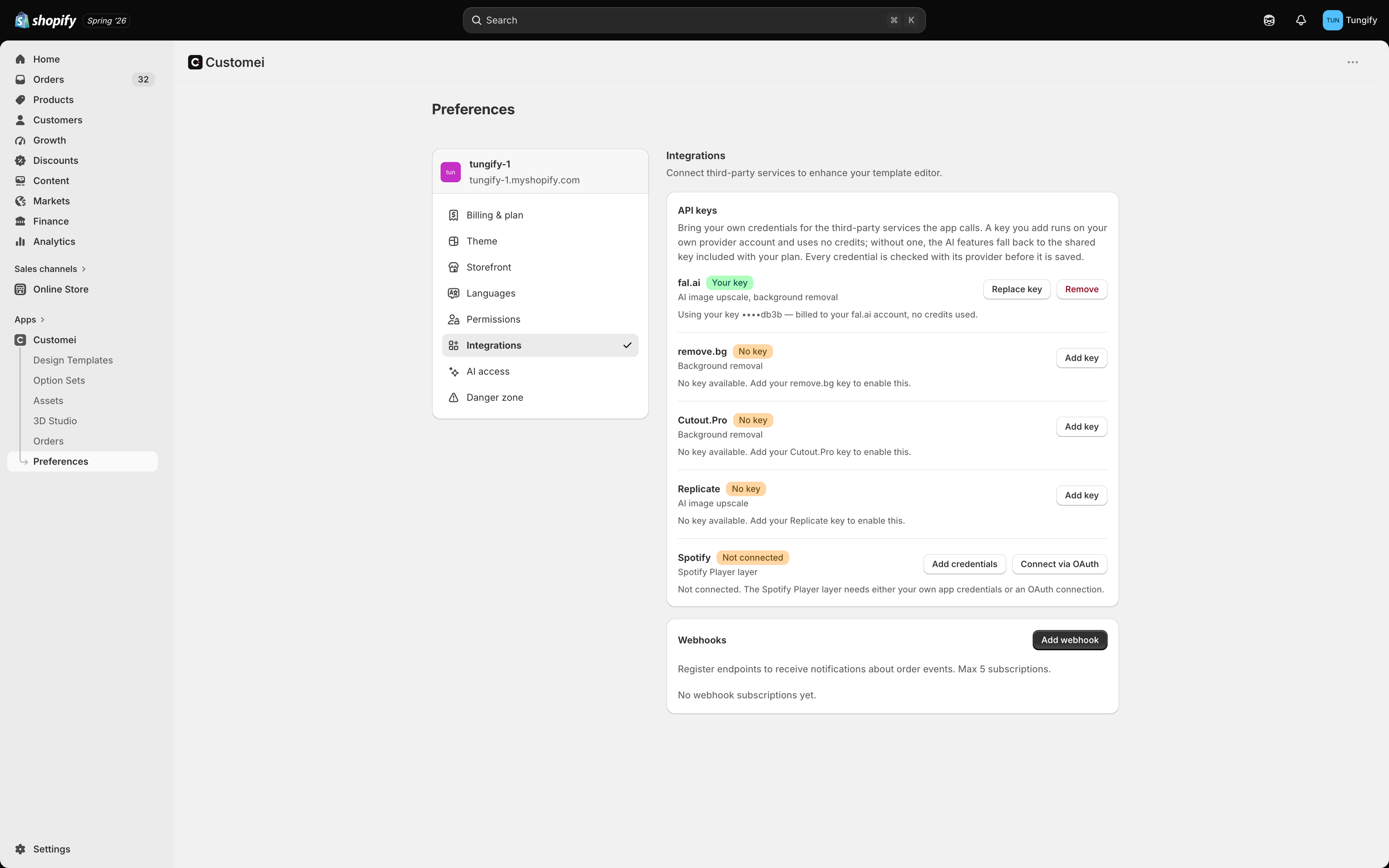
Go to **Preferences** and open the **Integrations** tab.
 ## Using your own account with a service
The top card is for the outside services that power a few extras, like removing the background from a customer's photo or making a small photo bigger.
You don't have to do anything here. Every one of these works out of the box using the allowance included with your plan, which is spent in credits.
Adding your own account with one of these services changes only who pays:
| Without your own account | With your own account |
| ---------------------------- | ------------------------------------------ |
| Works straight away | Works straight away |
| Each use spends your credits | Each use is billed by that service, to you |
| Nothing to manage | You manage the account |
So it is worth doing when you use one of these features heavily and your own rate with that service is cheaper than credits. Otherwise, ignore this card.
Click **Add key** on a service, paste what it gave you, and save. Customei checks it with the service before saving, so a bad paste is caught immediately. **Replace key** swaps it, **Remove** goes back to using your plan's allowance.
These are the developer credentials from your account with that service. If you don't have an account with them, you don't need one.
## Spotify
The **Spotify player** you can put on your artwork needs a Spotify connection before it works. You have two ways to set it up:
* **Connect via OAuth** signs you in to Spotify and does the rest. Use this one.
* **Add credentials** is for teams who already run their own Spotify app and would rather use it.
Until one of them is done, the Spotify player layer has nothing to play.
## Getting told about new orders
The bottom card sends a message to your own systems the moment a personalized order comes in, so nobody has to copy details across by hand.
This one needs someone technical on your side, because you are giving Customei a web address to notify and something has to be listening at it. See [Tell your systems about new orders](/integrations/order-notifications).
## Where to next
Order notifications, start to finish.
Connect Claude, Cursor, or ChatGPT to your account.
## Using your own account with a service
The top card is for the outside services that power a few extras, like removing the background from a customer's photo or making a small photo bigger.
You don't have to do anything here. Every one of these works out of the box using the allowance included with your plan, which is spent in credits.
Adding your own account with one of these services changes only who pays:
| Without your own account | With your own account |
| ---------------------------- | ------------------------------------------ |
| Works straight away | Works straight away |
| Each use spends your credits | Each use is billed by that service, to you |
| Nothing to manage | You manage the account |
So it is worth doing when you use one of these features heavily and your own rate with that service is cheaper than credits. Otherwise, ignore this card.
Click **Add key** on a service, paste what it gave you, and save. Customei checks it with the service before saving, so a bad paste is caught immediately. **Replace key** swaps it, **Remove** goes back to using your plan's allowance.
These are the developer credentials from your account with that service. If you don't have an account with them, you don't need one.
## Spotify
The **Spotify player** you can put on your artwork needs a Spotify connection before it works. You have two ways to set it up:
* **Connect via OAuth** signs you in to Spotify and does the rest. Use this one.
* **Add credentials** is for teams who already run their own Spotify app and would rather use it.
Until one of them is done, the Spotify player layer has nothing to play.
## Getting told about new orders
The bottom card sends a message to your own systems the moment a personalized order comes in, so nobody has to copy details across by hand.
This one needs someone technical on your side, because you are giving Customei a web address to notify and something has to be listening at it. See [Tell your systems about new orders](/integrations/order-notifications).
## Where to next
Order notifications, start to finish.
Connect Claude, Cursor, or ChatGPT to your account.