> ## Documentation Index
> Fetch the complete documentation index at: https://docs.customei.com/llms.txt
> Use this file to discover all available pages before exploring further.
# How Customei works
> The three pieces (a design template, an option set, and a product) and how they fit together.
Customei turns an ordinary Shopify product into one your customers can personalize before they buy. A shopper types a name, picks a colour, uploads a photo, and watches your product change in front of them.
To make that happen you set up three things.
## The three pieces
Your artwork. A canvas at print size holding text, photos, and graphics.
The questions you ask the shopper, and what each answer changes on the artwork.
The Shopify product the option set is attached to. This is where it all goes live.
A design template on its own is just a picture. An option set on its own just collects answers. Put them together and attach them to a product, and you have a personalized product your customers can order.
 ## A real example
Say you sell a canvas print of two friends, and you want buyers to choose skin tones and add their own names.
In a design template you lay out the artwork: the two figures, the wording, and a text layer where a name goes. Every piece sits on its own **layer**, and every layer has a number such as `#14` or `#3`.
In an option set you add the options a shopper fills in: *Enter Year*, *Choose Skin For 1st Woman*, *Enter 1st Woman's Name*.
You tell Customei that the answer to *Enter Year* becomes the text on layer `#14`, and the swatch picked for *Choose Skin For 1st Woman* swaps the picture on layer `#3`.
Pick the Shopify product, hit **Publish**, and the options appear on that product page.
They type *2026*, pick a skin tone, and see the canvas update as they go. Their exact choices arrive with the order so you know what to print.
## What else is in the app
| Where | What it's for |
| -------------------- | ------------------------------------------------------------------------------ |
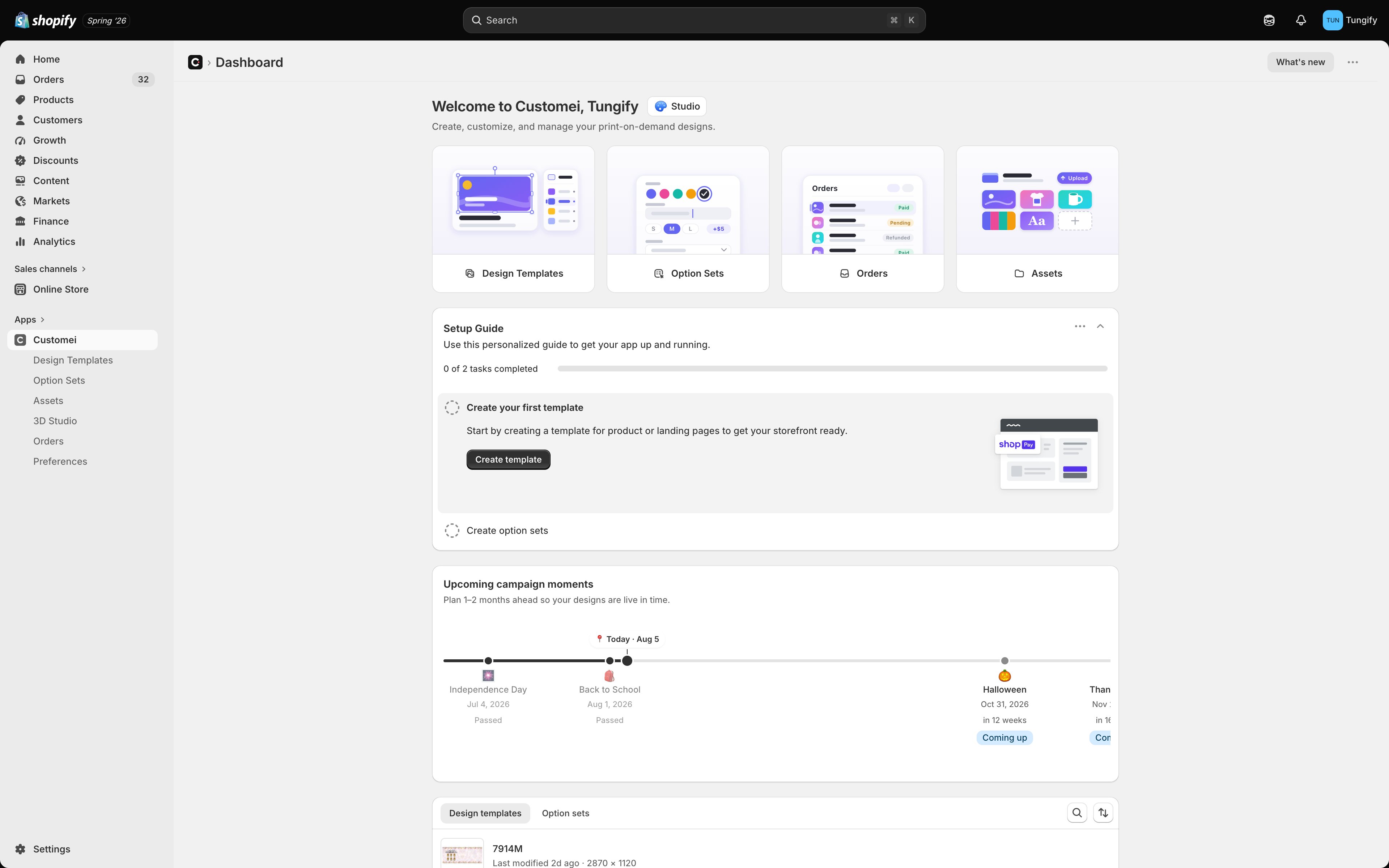
| **Design Templates** | Your artwork library. Create, import, and edit templates in the visual editor. |
| **Option Sets** | The questions your customers answer, and how each answer changes the design. |
| **Assets** | The images, graphics, and mockup photos you reuse across templates. |
| **Orders** | Every order that came in with personalization, and what the customer chose. |
| **Preferences** | Store-wide settings for how Customei behaves. |
You don't have to start from a blank canvas. When you create an option set, Customei can build the options for you from a design template you already have. See [Option sets](/optionsets/overview).
## Where to next
Start with the artwork side.
Pick a canvas size and lay out your first design.
Add the questions your customers answer.
Put it on a product page.
## A real example
Say you sell a canvas print of two friends, and you want buyers to choose skin tones and add their own names.
In a design template you lay out the artwork: the two figures, the wording, and a text layer where a name goes. Every piece sits on its own **layer**, and every layer has a number such as `#14` or `#3`.
In an option set you add the options a shopper fills in: *Enter Year*, *Choose Skin For 1st Woman*, *Enter 1st Woman's Name*.
You tell Customei that the answer to *Enter Year* becomes the text on layer `#14`, and the swatch picked for *Choose Skin For 1st Woman* swaps the picture on layer `#3`.
Pick the Shopify product, hit **Publish**, and the options appear on that product page.
They type *2026*, pick a skin tone, and see the canvas update as they go. Their exact choices arrive with the order so you know what to print.
## What else is in the app
| Where | What it's for |
| -------------------- | ------------------------------------------------------------------------------ |
| **Design Templates** | Your artwork library. Create, import, and edit templates in the visual editor. |
| **Option Sets** | The questions your customers answer, and how each answer changes the design. |
| **Assets** | The images, graphics, and mockup photos you reuse across templates. |
| **Orders** | Every order that came in with personalization, and what the customer chose. |
| **Preferences** | Store-wide settings for how Customei behaves. |
You don't have to start from a blank canvas. When you create an option set, Customei can build the options for you from a design template you already have. See [Option sets](/optionsets/overview).
## Where to next
Start with the artwork side.
Pick a canvas size and lay out your first design.
Add the questions your customers answer.
Put it on a product page.