> ## Documentation Index
> Fetch the complete documentation index at: https://docs.customei.com/llms.txt
> Use this file to discover all available pages before exploring further.
# Show or hide options
> Reveal an option only when the customer's earlier choices make it relevant.
A product page that asks twelve questions at once feels like paperwork. Conditions let you ask two, and only show the rest when they actually apply.
If a customer picks "No engraving", they should never be asked what to engrave.
## Setting up a condition
Select the option you want to control, scroll to **Conditions**, and click **Setup condition**.
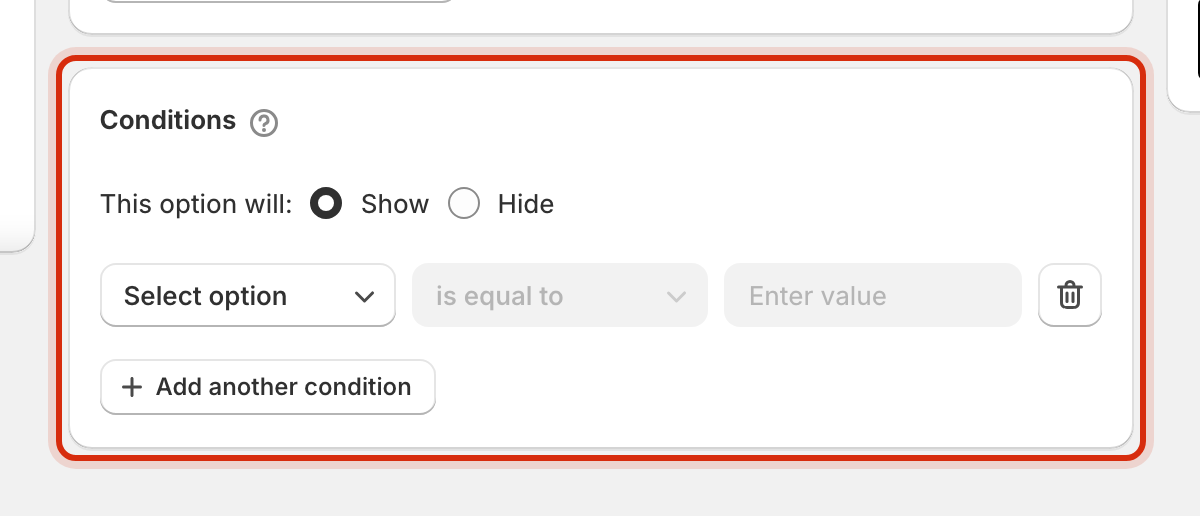 Each rule has two halves:
**This option will: Show** or **Hide**. Show is the usual choice: the option stays out of the way until it is needed.
Pick the option being watched, choose how to compare it, and enter the value to compare against.
The rule applies to the option you have selected, based on what the customer does to a *different* option.
## The three comparisons
| Comparison | It matches when |
| ---------------- | --------------------------------------------------------- |
| **is equal to** | The watched option's value is exactly what you entered |
| **has at least** | The customer has picked your value, among possibly others |
| **has exactly** | The customer has picked your value and nothing else |
**is equal to** covers almost everything. The other two exist for options where a customer can pick more than one answer, where "did they choose gift wrap at all" and "did they choose only gift wrap" are different questions.
Options that only ever hold a single answer offer **is equal to** on its own. If you were expecting the other comparisons and cannot see them, that is why.
## Combining conditions
**Add another condition** adds a second rule to the same option, so you can require more than one thing to be true before it appears.
Two conditions on an option is usually plenty. If you find yourself stacking four, it is normally a sign the option should be split into a couple of simpler questions instead.
## Getting it right
The value you compare against is the option's **Value**, the internal name, not the **Label** the customer reads. If you renamed the label from "1" to "Fair", the condition still watches for `1`. See [Manage your values](/optionsets/managing-values).
A hidden option is not answered. If you mark an option **Required** and then hide it behind a condition that never comes true, customers can still check out and you will receive orders with that detail missing. Set up the condition first, then decide whether it needs to be required.
Test the rule on your own product page before you rely on it. Walk through it as a customer would: pick the triggering choice and confirm the option appears, then pick something else and confirm it goes away.
## Where to next
The values your conditions watch for.
The full set of option types.
Reveal a paid upgrade only when relevant.
Publish so your rules reach the storefront.
Each rule has two halves:
**This option will: Show** or **Hide**. Show is the usual choice: the option stays out of the way until it is needed.
Pick the option being watched, choose how to compare it, and enter the value to compare against.
The rule applies to the option you have selected, based on what the customer does to a *different* option.
## The three comparisons
| Comparison | It matches when |
| ---------------- | --------------------------------------------------------- |
| **is equal to** | The watched option's value is exactly what you entered |
| **has at least** | The customer has picked your value, among possibly others |
| **has exactly** | The customer has picked your value and nothing else |
**is equal to** covers almost everything. The other two exist for options where a customer can pick more than one answer, where "did they choose gift wrap at all" and "did they choose only gift wrap" are different questions.
Options that only ever hold a single answer offer **is equal to** on its own. If you were expecting the other comparisons and cannot see them, that is why.
## Combining conditions
**Add another condition** adds a second rule to the same option, so you can require more than one thing to be true before it appears.
Two conditions on an option is usually plenty. If you find yourself stacking four, it is normally a sign the option should be split into a couple of simpler questions instead.
## Getting it right
The value you compare against is the option's **Value**, the internal name, not the **Label** the customer reads. If you renamed the label from "1" to "Fair", the condition still watches for `1`. See [Manage your values](/optionsets/managing-values).
A hidden option is not answered. If you mark an option **Required** and then hide it behind a condition that never comes true, customers can still check out and you will receive orders with that detail missing. Set up the condition first, then decide whether it needs to be required.
Test the rule on your own product page before you rely on it. Walk through it as a customer would: pick the triggering choice and confirm the option appears, then pick something else and confirm it goes away.
## Where to next
The values your conditions watch for.
The full set of option types.
Reveal a paid upgrade only when relevant.
Publish so your rules reach the storefront.