> ## Documentation Index
> Fetch the complete documentation index at: https://docs.customei.com/llms.txt
> Use this file to discover all available pages before exploring further.
# Options that keep themselves up to date
> Build your questions from a design template and they keep following it, so renaming a layer or adding pictures to a folder doesn't mean editing every option by hand.
You don't have to type your questions out one by one. If you build an option set **from** a design template, Customei reads your layers and writes the matching questions for you. From then on the two stay joined, so a change to the artwork doesn't leave you editing options by hand.
## Build the questions from your artwork
On **Option Sets**, click **Create** and pick the design template you want, instead of *Start from scratch*.
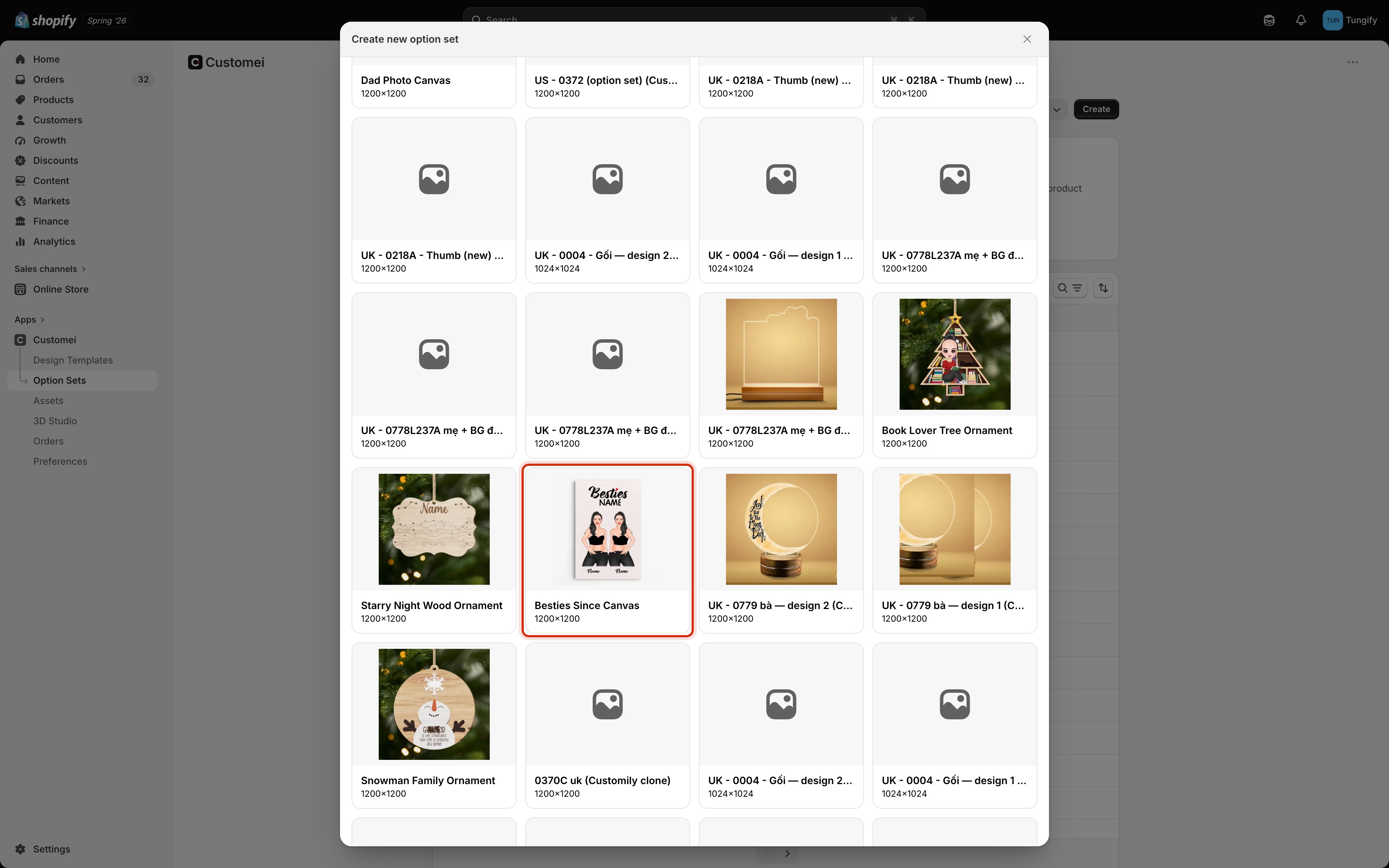 Clicking a card creates the option set straight away. There is no confirm step, so pick deliberately.
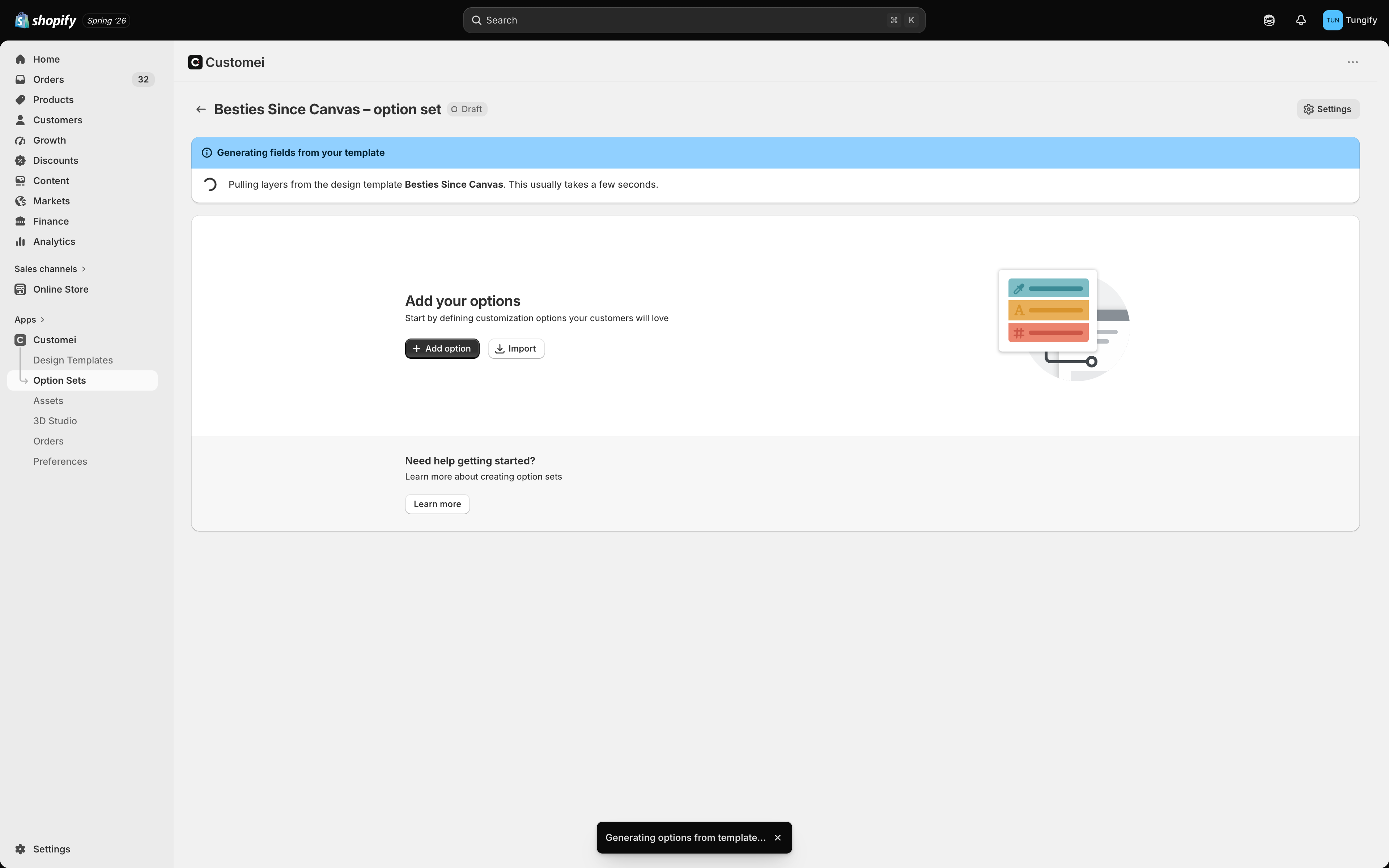
Customei then reads the template. This takes a few seconds and it tells you while it works.
Clicking a card creates the option set straight away. There is no confirm step, so pick deliberately.
Customei then reads the template. This takes a few seconds and it tells you while it works.
 When it's done, your questions are there, in the same order as your layers.
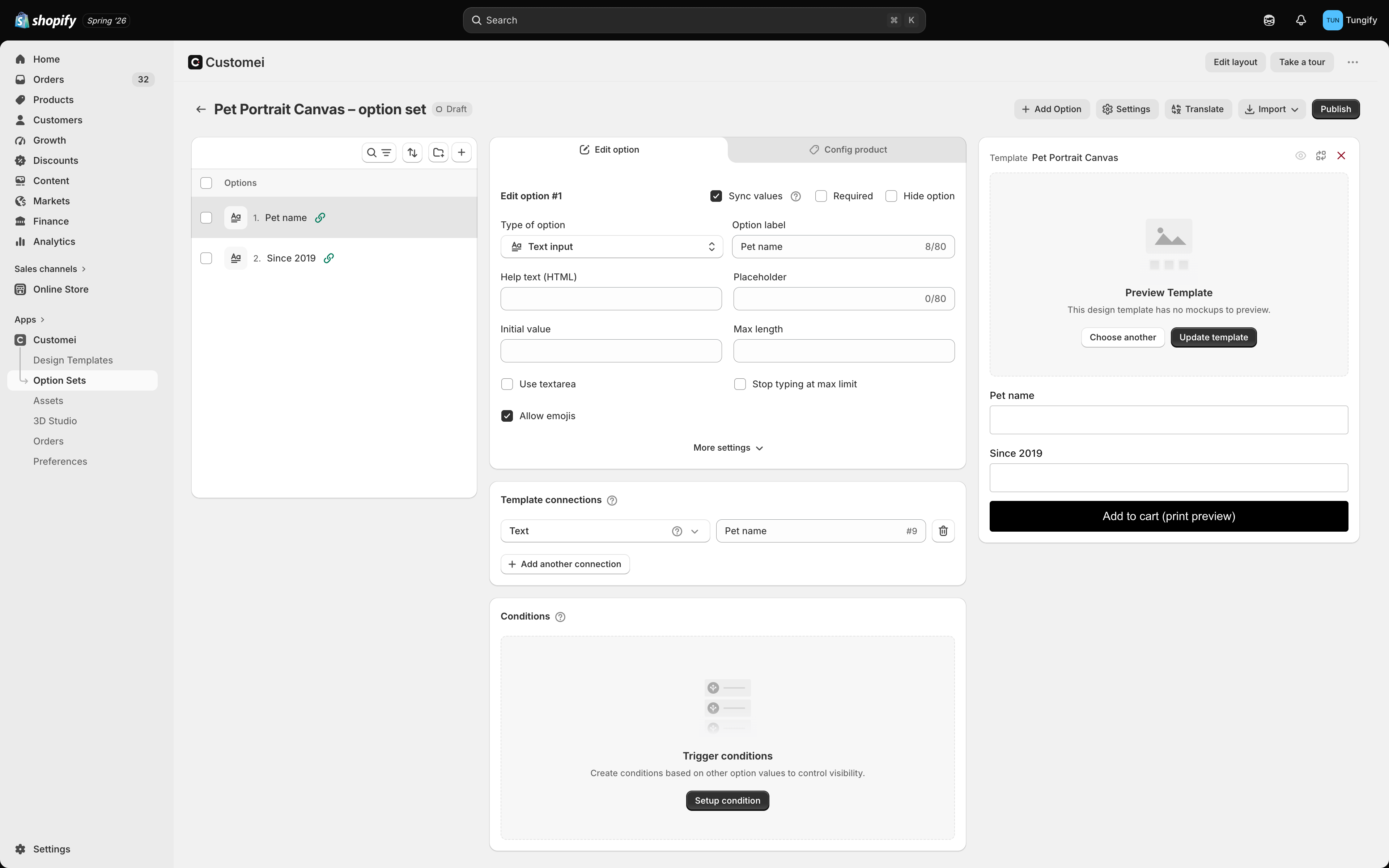 The small link icon next to a question means it came from your artwork and is still following it.
## What each layer gives you
| Layer in your artwork | Question you get |
| --------------------------------------------- | -------------------------------------------------------- |
| Text | A text box for the customer to type in |
| Text with a choice of fonts | Also a font picker |
| Text with a choice of colours | Also a colour swatch |
| A picture joined to a folder of images | A row of pictures to choose from |
| A photo placeholder | An upload box, so the customer sends you their own photo |
| QR code | A text box for what the code should point at |
| Calendar or moon phase | A date picker |
| Star map or map | A place picker |
| Spotify player | A Spotify field |
| Word search or word cloud | A text box, plus the style choices you set up |
| Background, shapes, and the groups themselves | Nothing. There's nothing for a customer to change. |
A choice needs at least two things to choose between. If a folder of images holds only one picture, there is nothing to pick, so no question appears for it. Add a second picture and it becomes a real choice.
## It keeps following your artwork
Once a question came from a layer, it keeps up with that layer:
* Rename or renumber the layer and the question follows it. Nothing breaks.
* Add a layer and a new question appears for it.
* Delete a layer and its question goes away. If another question's show/hide rule depends on it, the question stays and simply stops being joined to the artwork, so your rule keeps working.
## Adding pictures to a folder later
This is the part worth knowing, because it saves the most work.
A row of pictures gets its choices from a folder of images. Top the folder up and every option set that draws from it can offer the new pictures. You add the picture once, in **Assets**, instead of editing each option set.
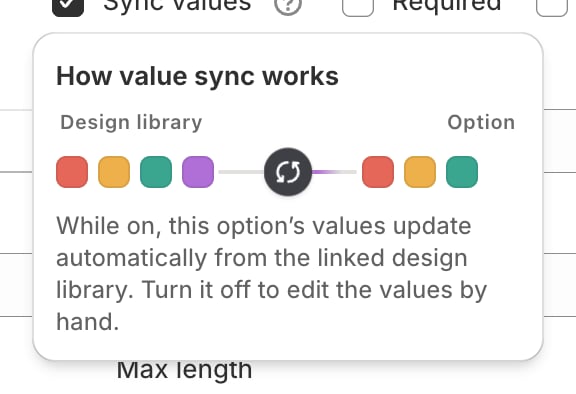
Each joined question has a **Sync values** tick box that controls this.
The small link icon next to a question means it came from your artwork and is still following it.
## What each layer gives you
| Layer in your artwork | Question you get |
| --------------------------------------------- | -------------------------------------------------------- |
| Text | A text box for the customer to type in |
| Text with a choice of fonts | Also a font picker |
| Text with a choice of colours | Also a colour swatch |
| A picture joined to a folder of images | A row of pictures to choose from |
| A photo placeholder | An upload box, so the customer sends you their own photo |
| QR code | A text box for what the code should point at |
| Calendar or moon phase | A date picker |
| Star map or map | A place picker |
| Spotify player | A Spotify field |
| Word search or word cloud | A text box, plus the style choices you set up |
| Background, shapes, and the groups themselves | Nothing. There's nothing for a customer to change. |
A choice needs at least two things to choose between. If a folder of images holds only one picture, there is nothing to pick, so no question appears for it. Add a second picture and it becomes a real choice.
## It keeps following your artwork
Once a question came from a layer, it keeps up with that layer:
* Rename or renumber the layer and the question follows it. Nothing breaks.
* Add a layer and a new question appears for it.
* Delete a layer and its question goes away. If another question's show/hide rule depends on it, the question stays and simply stops being joined to the artwork, so your rule keeps working.
## Adding pictures to a folder later
This is the part worth knowing, because it saves the most work.
A row of pictures gets its choices from a folder of images. Top the folder up and every option set that draws from it can offer the new pictures. You add the picture once, in **Assets**, instead of editing each option set.
Each joined question has a **Sync values** tick box that controls this.
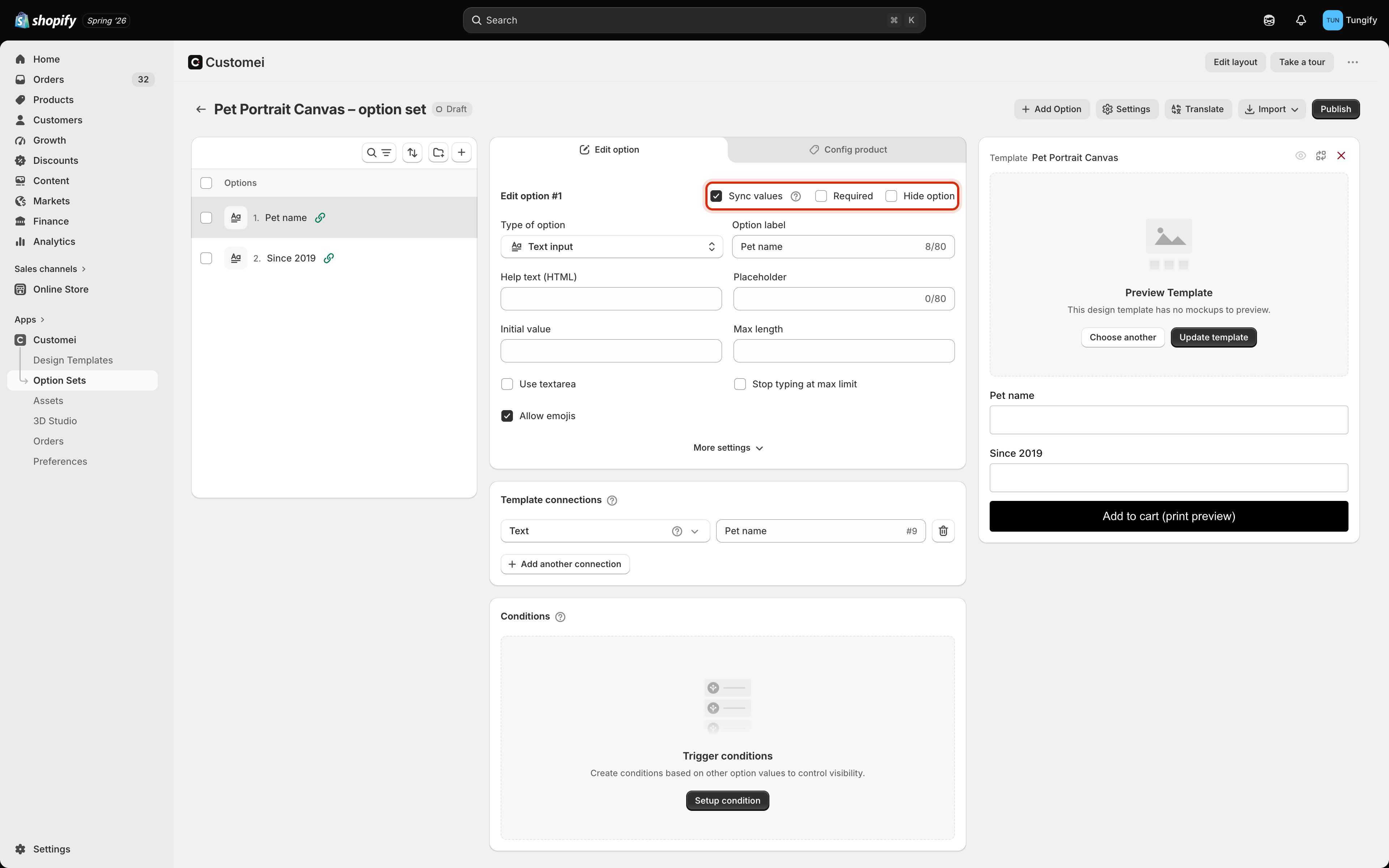 Hover the **?** next to it for a small animation of what it does.
 Added pictures to a folder but the question hasn't picked them up? Untick **Sync values**, then tick it again. That pulls the choices in fresh from the folder. If the question offers a **Reset to library values** button, that does the same thing.
## When you edit a question yourself
Your own edits win. Customei never overwrites the wording you typed.
* Rename a choice, add a surcharge, or drag the choices into a different order, and your version stays.
* The question still accepts the bigger changes from the artwork, like a layer being renamed.
* A **View details** link appears so you can see exactly which rows you changed. Next to it, **Reset to library values** puts everything back the way the folder has it.
If you'd rather a question stopped changing altogether, untick **Sync values**. It stays exactly as you left it, and you can tick it again whenever you want to start following the artwork again.
If you add or remove choices that aren't in the folder at all, that question stops taking new choices from the folder until you press **Reset to library values**. Your rows are safe, they just aren't coming from the folder any more.
## Where to next
How a question points at a layer number.
Add, reorder, and label the choices by hand.
Where those folders of pictures come from.
Publish the changes to your storefront.
Added pictures to a folder but the question hasn't picked them up? Untick **Sync values**, then tick it again. That pulls the choices in fresh from the folder. If the question offers a **Reset to library values** button, that does the same thing.
## When you edit a question yourself
Your own edits win. Customei never overwrites the wording you typed.
* Rename a choice, add a surcharge, or drag the choices into a different order, and your version stays.
* The question still accepts the bigger changes from the artwork, like a layer being renamed.
* A **View details** link appears so you can see exactly which rows you changed. Next to it, **Reset to library values** puts everything back the way the folder has it.
If you'd rather a question stopped changing altogether, untick **Sync values**. It stays exactly as you left it, and you can tick it again whenever you want to start following the artwork again.
If you add or remove choices that aren't in the folder at all, that question stops taking new choices from the folder until you press **Reset to library values**. Your rows are safe, they just aren't coming from the folder any more.
## Where to next
How a question points at a layer number.
Add, reorder, and label the choices by hand.
Where those folders of pictures come from.
Publish the changes to your storefront.