> ## Documentation Index
> Fetch the complete documentation index at: https://docs.customei.com/llms.txt
> Use this file to discover all available pages before exploring further.
# Charge extra for a choice
> Add a surcharge to a specific value so premium options are paid for at checkout.
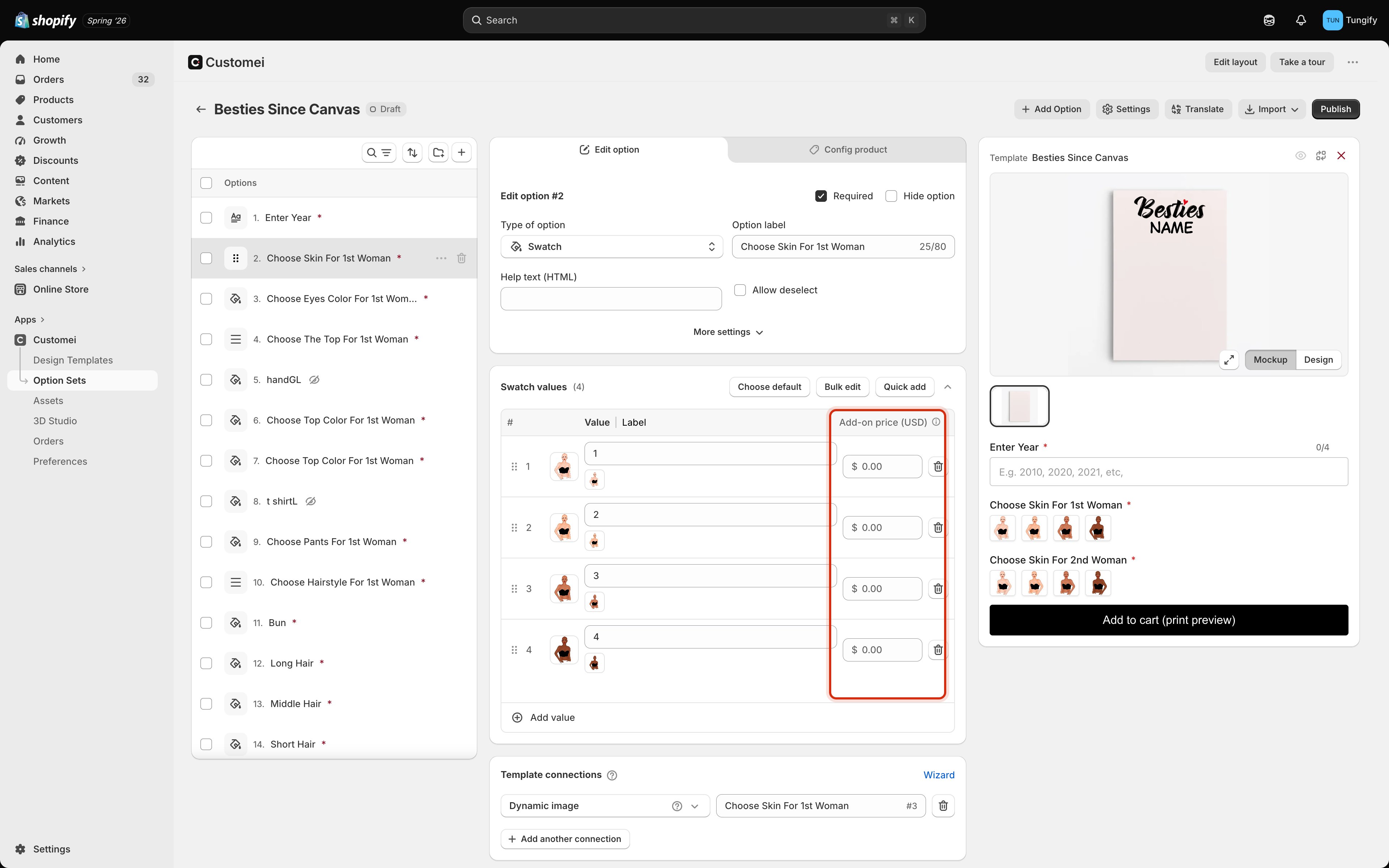
Some choices cost you more to make. Gift wrapping, a second name, an upgrade to a bigger frame. The **Add-on price** column lets you charge for those, value by value.
 ## Setting a price
Type the extra amount into the **Add-on price (USD)** field on the row. Leave it at `0.00` and the choice costs nothing extra, which is how every value starts.
The amount is what gets added on top of your product price, not the new total. If your mug is $20 and you put `5` on the "Add a photo" value, the customer pays $25.
## Prices are entered in US dollars
Whatever currency your store sells in, you type add-on prices here in **USD**. They are converted into each store's currency when you publish, and the converted amount is what the customer pays.
Because the conversion happens at publish, a price you set today is converted at that point rather than moving with the exchange rate afterwards. If rates shift a long way, republish to refresh them.
## A priced choice cannot be pre-selected
If a value carries an extra charge, it cannot be set as the option's default. The **Choose default** list will not let you pick it.
This is on purpose, and it is worth understanding rather than working around. A customer who lands on your product page and sees a price should be able to trust that it is the price of what is currently selected. Starting them on a paid upgrade they did not choose is how you end up with abandoned carts and chargebacks.
If you want the premium version to be the obvious choice, make it free and raise your product price, then offer a cheaper stripped-back value instead. The customer still lands on the option you want, and nothing is hidden.
## Where the charge shows up
The extra appears as part of the line item price when the customer adds to cart, and it carries through to checkout and to the order in your Shopify admin. You do not need to create a separate product or a hidden variant for it.
Changing an add-on price only affects new orders. Anything already sitting in a customer's cart keeps the price it had when it was added.
## Pricing that does not cause support tickets
* **Charge for real costs.** Surcharges that map onto something the customer can see, like an extra photo or a bigger size, are accepted without complaint. Arbitrary ones are not.
* **Say what it is in the label.** "Gift box (+\$5)" in the label leaves no room for surprise, even though the price is applied automatically.
* **Keep the number of paid options small.** Three surcharges on one product turns a simple purchase into a pricing puzzle.
## Where to next
Reorder, rename, and set a default.
Set many prices at once.
Only show a paid upgrade when it is relevant.
Publish so the new prices reach your storefront.
## Setting a price
Type the extra amount into the **Add-on price (USD)** field on the row. Leave it at `0.00` and the choice costs nothing extra, which is how every value starts.
The amount is what gets added on top of your product price, not the new total. If your mug is $20 and you put `5` on the "Add a photo" value, the customer pays $25.
## Prices are entered in US dollars
Whatever currency your store sells in, you type add-on prices here in **USD**. They are converted into each store's currency when you publish, and the converted amount is what the customer pays.
Because the conversion happens at publish, a price you set today is converted at that point rather than moving with the exchange rate afterwards. If rates shift a long way, republish to refresh them.
## A priced choice cannot be pre-selected
If a value carries an extra charge, it cannot be set as the option's default. The **Choose default** list will not let you pick it.
This is on purpose, and it is worth understanding rather than working around. A customer who lands on your product page and sees a price should be able to trust that it is the price of what is currently selected. Starting them on a paid upgrade they did not choose is how you end up with abandoned carts and chargebacks.
If you want the premium version to be the obvious choice, make it free and raise your product price, then offer a cheaper stripped-back value instead. The customer still lands on the option you want, and nothing is hidden.
## Where the charge shows up
The extra appears as part of the line item price when the customer adds to cart, and it carries through to checkout and to the order in your Shopify admin. You do not need to create a separate product or a hidden variant for it.
Changing an add-on price only affects new orders. Anything already sitting in a customer's cart keeps the price it had when it was added.
## Pricing that does not cause support tickets
* **Charge for real costs.** Surcharges that map onto something the customer can see, like an extra photo or a bigger size, are accepted without complaint. Arbitrary ones are not.
* **Say what it is in the label.** "Gift box (+\$5)" in the label leaves no room for surprise, even though the price is applied automatically.
* **Keep the number of paid options small.** Three surcharges on one product turns a simple purchase into a pricing puzzle.
## Where to next
Reorder, rename, and set a default.
Set many prices at once.
Only show a paid upgrade when it is relevant.
Publish so the new prices reach your storefront.