> ## Documentation Index
> Fetch the complete documentation index at: https://docs.customei.com/llms.txt
> Use this file to discover all available pages before exploring further.
# Let an AI assistant help you
> Connect Claude, Cursor, or ChatGPT to your Customei account so it can do the busywork for you, and see everything it did.
You can hand some of the repetitive work to an AI assistant. Once it is connected, you ask it in plain words and it does the clicking for you.
Things merchants actually use it for:
* "List my design templates and tell me which ones aren't live yet."
* "Copy the Besties canvas template and call it Besties Mug."
* "Add German, then translate the Besties option set into it."
* "Publish the Besties option set to the Besties Since Canvas product."
## Connect it
Go to **Preferences** and open the **AI access** tab.
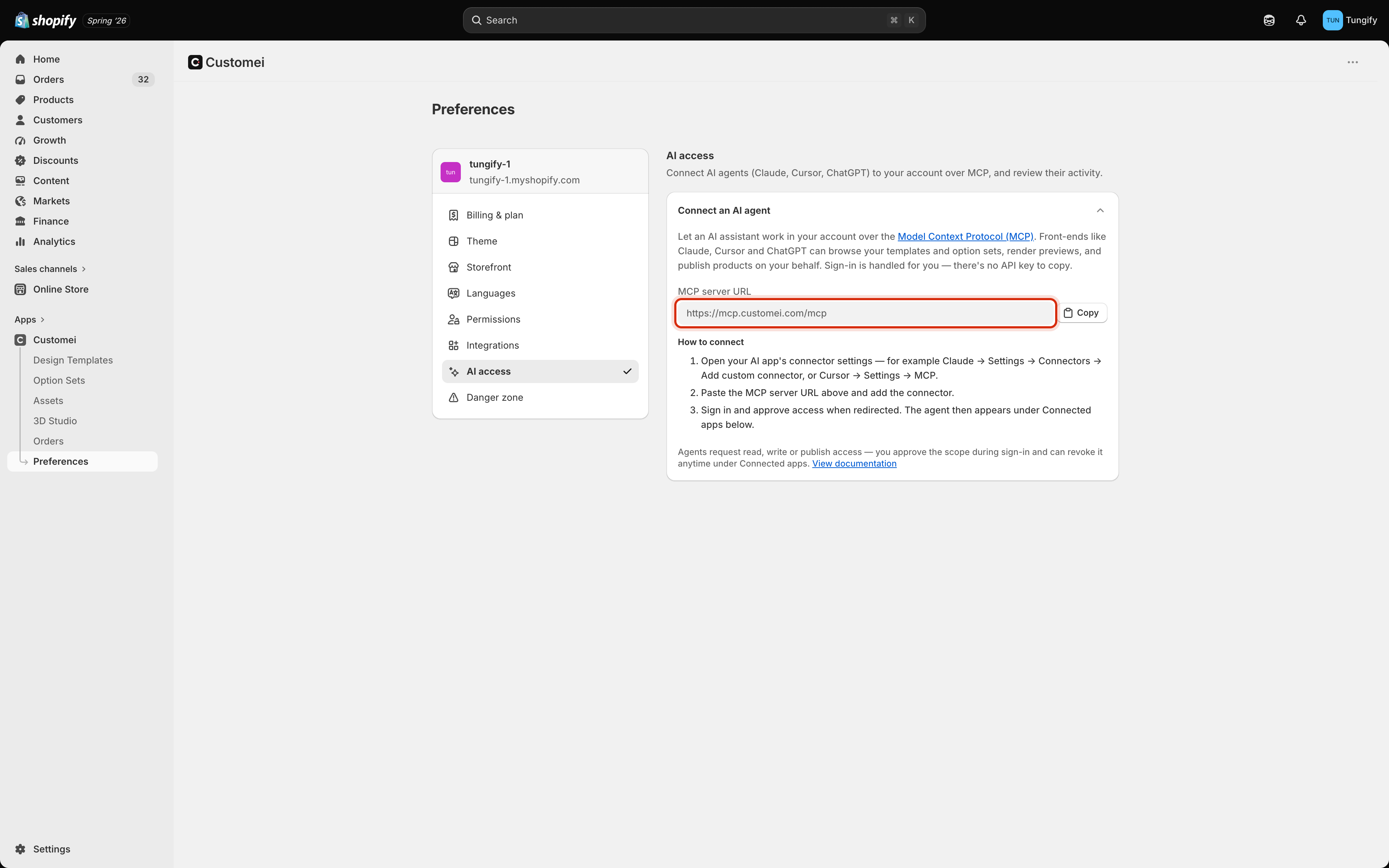 Click **Copy** next to **MCP server URL**. That address is the same for every store, so there is no secret to keep here.
In Claude: **Settings → Connectors → Add custom connector**. In Cursor: **Settings → MCP**. Other apps have a similar "add a connector" screen.
Your browser opens and asks you to sign in to Customei and approve the access. That's it. There is no key to paste anywhere.
## What it can and can't do
While it is being connected, the assistant asks for one of three levels of access, and you approve that level when you sign in.
| Level | What it can do |
| ----------- | --------------------------------------------------------------------------------------------------------------------------------------------------------------- |
| **Read** | Look at things. List your templates and option sets, read your translations, search your folders of images, and make a preview picture. It changes nothing. |
| **Write** | Everything above, plus make changes: create or copy a template or option set, edit options, add a language, write translations, attach a template to a product. |
| **Publish** | Everything above, plus put a product live or take it back down. |
Approve the smallest level that does the job. An assistant with **Read** cannot break anything, so it is the right level for anyone exploring. Only grant **Publish** when you actually want it changing what your customers see.
An assistant works inside your account and can only see your own templates, option sets, folders, and products. It can never see another store's.
## See what it did
Once an assistant has connected, two more sections appear on this tab.
**Connected apps** lists every AI app joined to your account, when it was connected, and when it was last active.
**The activity log** lists every single action an assistant took: the time, what it did, the level of access it used, and whether it worked or was refused. You can filter it by action or by result, and open a row to see the detail.
These two only show up after something has actually connected. If you have never connected an assistant, all you see is the how-to card.
## Cut off access
On the **Connected apps** row, click the bin icon and confirm.
Access stops immediately. Whoever was using that assistant has to connect again from scratch if they want back in. Use it the moment someone leaves your team.
## Where to next
One of the jobs worth handing over.
What publishing does, so you know what you're approving.
Click **Copy** next to **MCP server URL**. That address is the same for every store, so there is no secret to keep here.
In Claude: **Settings → Connectors → Add custom connector**. In Cursor: **Settings → MCP**. Other apps have a similar "add a connector" screen.
Your browser opens and asks you to sign in to Customei and approve the access. That's it. There is no key to paste anywhere.
## What it can and can't do
While it is being connected, the assistant asks for one of three levels of access, and you approve that level when you sign in.
| Level | What it can do |
| ----------- | --------------------------------------------------------------------------------------------------------------------------------------------------------------- |
| **Read** | Look at things. List your templates and option sets, read your translations, search your folders of images, and make a preview picture. It changes nothing. |
| **Write** | Everything above, plus make changes: create or copy a template or option set, edit options, add a language, write translations, attach a template to a product. |
| **Publish** | Everything above, plus put a product live or take it back down. |
Approve the smallest level that does the job. An assistant with **Read** cannot break anything, so it is the right level for anyone exploring. Only grant **Publish** when you actually want it changing what your customers see.
An assistant works inside your account and can only see your own templates, option sets, folders, and products. It can never see another store's.
## See what it did
Once an assistant has connected, two more sections appear on this tab.
**Connected apps** lists every AI app joined to your account, when it was connected, and when it was last active.
**The activity log** lists every single action an assistant took: the time, what it did, the level of access it used, and whether it worked or was refused. You can filter it by action or by result, and open a row to see the detail.
These two only show up after something has actually connected. If you have never connected an assistant, all you see is the how-to card.
## Cut off access
On the **Connected apps** row, click the bin icon and confirm.
Access stops immediately. Whoever was using that assistant has to connect again from scratch if they want back in. Use it the moment someone leaves your team.
## Where to next
One of the jobs worth handing over.
What publishing does, so you know what you're approving.