> ## Documentation Index
> Fetch the complete documentation index at: https://docs.customei.com/llms.txt
> Use this file to discover all available pages before exploring further.
# Design templates
> What a design template is, and how one design can serve many products.
A **design template** is your artwork. It's a canvas at print size holding everything that goes on the finished product: the wording, the photos, the graphics, the background.
What makes it a *template* rather than a flat image is that individual pieces of it can be changed later, either by you or by your customer while they shop. Each of those pieces is a **layer**.
 ## Template or option set?
These two are easy to mix up, so it's worth being clear from the start.
| | Design template | Option set |
| --------------------- | --------------------------------------------- | ----------------------------------- |
| **What it holds** | The artwork: layers of text, images, graphics | The questions your customer answers |
| **Who sees it** | You, in the editor. Customers see the result. | Your customers, on the product page |
| **Where you edit it** | Design Templates | Option Sets |
| **Example** | A canvas with a name in script lettering | A box labelled *Enter Your Name* |
You need both. The option set collects the name; the design template is where that name gets printed.
## What's in your library
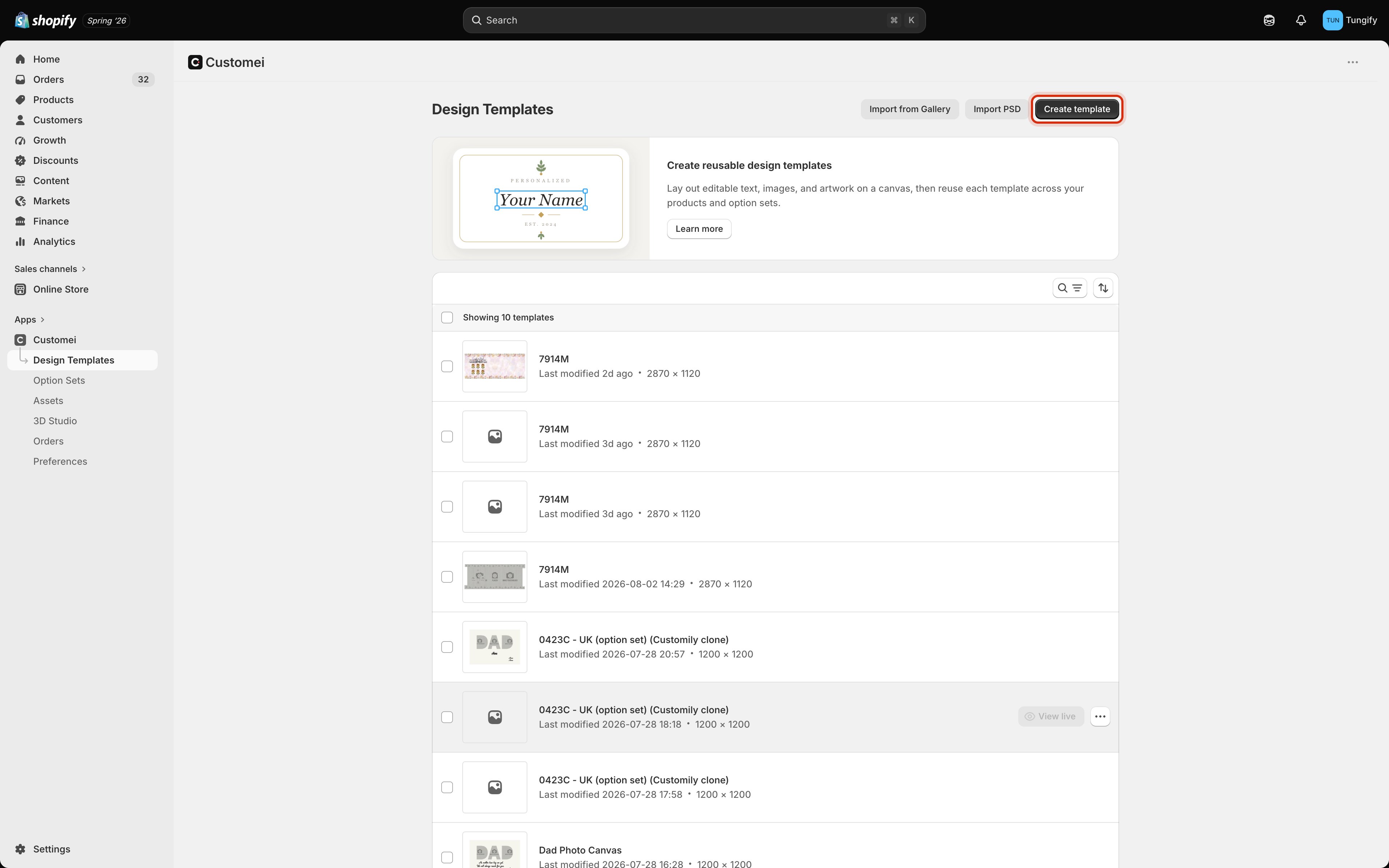
Every template in the list shows its name, when you last changed it, and its canvas size in pixels. Use the search and sort controls at the top of the list to find one quickly in a big library.
There are three ways to add a template:
Start from a blank canvas at a size you choose.
Bring in a ready-made design from Customei's gallery.
Upload a Photoshop file and keep its layers.
## One template, many products
A template isn't tied to a single product. Build a mug design once and you can use it for as many products as you like. Each one gets its own option set pointing at the same artwork.
That also means editing a template affects everything using it. Change the font on a layer and every live product built on that template picks up the change.
Templates you remove go to the trash and stay there for 30 days before they're deleted for good. You can restore one at any point during those 30 days from **Go to trash** at the bottom of the list.
## Where to next
Pick a canvas size and lay out your artwork.
Add the questions your customers answer.
The two canvases in the editor, and which one gets printed.
Show your artwork on photos of the real product.
## Template or option set?
These two are easy to mix up, so it's worth being clear from the start.
| | Design template | Option set |
| --------------------- | --------------------------------------------- | ----------------------------------- |
| **What it holds** | The artwork: layers of text, images, graphics | The questions your customer answers |
| **Who sees it** | You, in the editor. Customers see the result. | Your customers, on the product page |
| **Where you edit it** | Design Templates | Option Sets |
| **Example** | A canvas with a name in script lettering | A box labelled *Enter Your Name* |
You need both. The option set collects the name; the design template is where that name gets printed.
## What's in your library
Every template in the list shows its name, when you last changed it, and its canvas size in pixels. Use the search and sort controls at the top of the list to find one quickly in a big library.
There are three ways to add a template:
Start from a blank canvas at a size you choose.
Bring in a ready-made design from Customei's gallery.
Upload a Photoshop file and keep its layers.
## One template, many products
A template isn't tied to a single product. Build a mug design once and you can use it for as many products as you like. Each one gets its own option set pointing at the same artwork.
That also means editing a template affects everything using it. Change the font on a layer and every live product built on that template picks up the change.
Templates you remove go to the trash and stay there for 30 days before they're deleted for good. You can restore one at any point during those 30 days from **Go to trash** at the bottom of the list.
## Where to next
Pick a canvas size and lay out your artwork.
Add the questions your customers answer.
The two canvases in the editor, and which one gets printed.
Show your artwork on photos of the real product.