> ## Documentation Index
> Fetch the complete documentation index at: https://docs.customei.com/llms.txt
> Use this file to discover all available pages before exploring further.
# Words that must always translate the same
> Set the translation for your brand names, materials, and house terms once, so they come out identical everywhere.
Some words should never be translated freely. Your brand name. A material like *linen*. A size you call *Grande*. If they come out differently on every product page, your store looks careless.
Customei keeps one list of these for your whole account. You write the translation once, and it is used everywhere.
## Open the list
Go to **Preferences**, open the **Languages** tab, then click **Translate**.
The button only works once you have added a second language. Nothing to translate into means nothing to write down. See [Add your languages](/translations/languages).
 ## Add a phrase
A new empty row appears at the bottom.
Write them exactly as they appear in your questions, including capital letters.
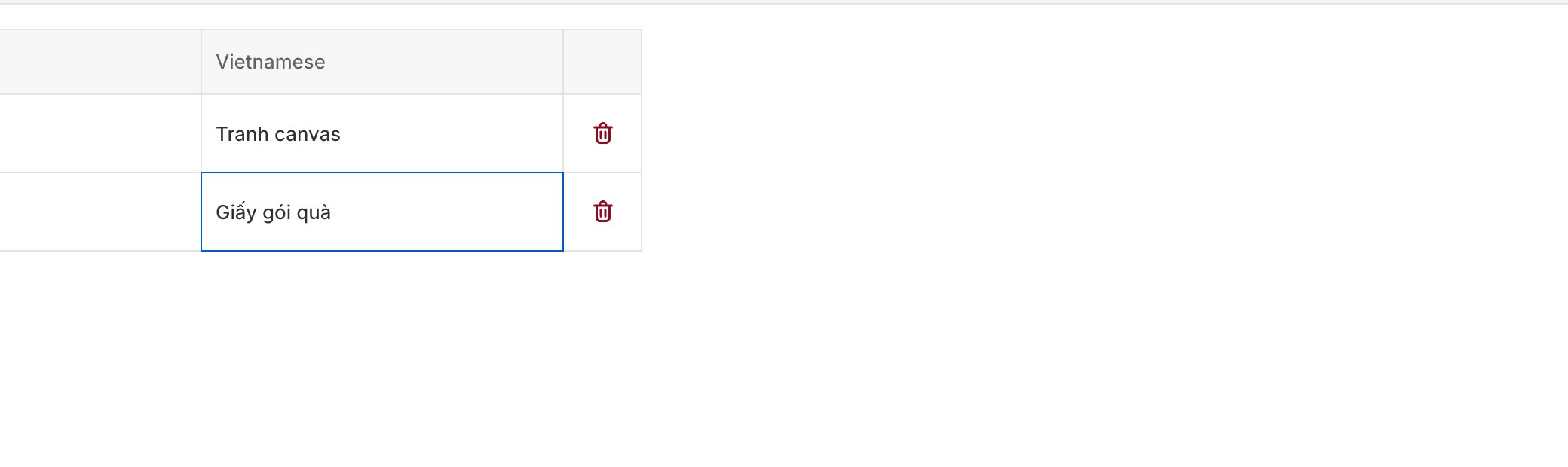
One column per language you added.
The list applies from now on.
Use the bin icon at the end of a row to remove a phrase.
## What it's for
When you let Customei draft your translations, it uses this list rather than guessing. So *Canvas print* comes back as *Tranh canvas* every single time, not as three different things on three different products.
It is also a handy reference for whoever does your translating by hand.
Keep the list short and specific. Words with an obvious translation don't need to be here. The ones that earn their place are brand names, materials, and terms your team argues about.
## Where to next
Put the list to work.
Add the columns first.
## Add a phrase
A new empty row appears at the bottom.
Write them exactly as they appear in your questions, including capital letters.
One column per language you added.
The list applies from now on.
Use the bin icon at the end of a row to remove a phrase.
## What it's for
When you let Customei draft your translations, it uses this list rather than guessing. So *Canvas print* comes back as *Tranh canvas* every single time, not as three different things on three different products.
It is also a handy reference for whoever does your translating by hand.
Keep the list short and specific. Words with an obvious translation don't need to be here. The ones that earn their place are brand names, materials, and terms your team argues about.
## Where to next
Put the list to work.
Add the columns first.