> ## Documentation Index
> Fetch the complete documentation index at: https://docs.customei.com/llms.txt
> Use this file to discover all available pages before exploring further.
# Add your languages
> Choose which languages your questions can be shown in, and remove the ones you no longer sell to.
Before you can translate anything, Customei needs to know which languages you sell in.
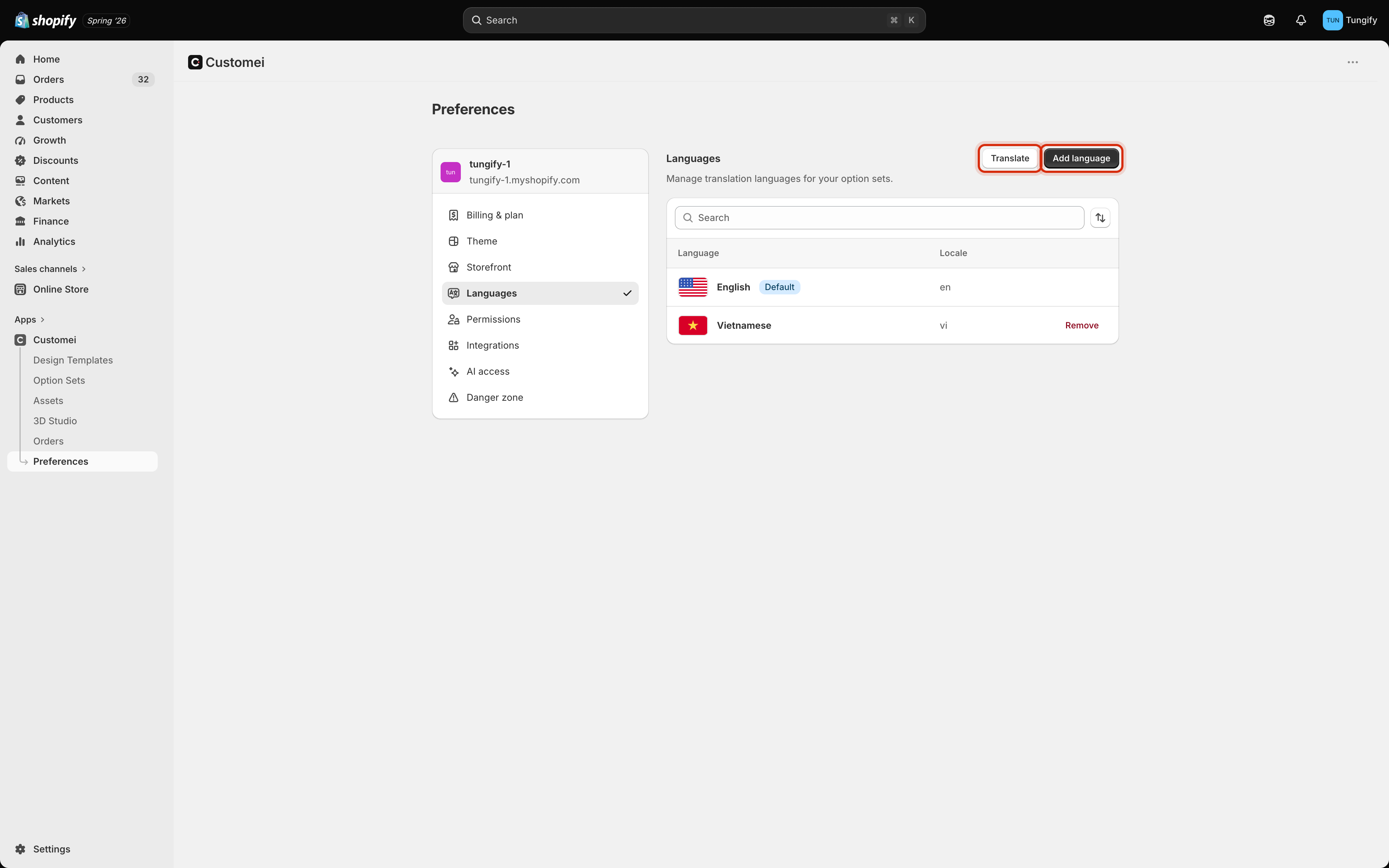
Go to **Preferences** and open the **Languages** tab.
 ## Add one
Click **Add language**. Tick every language you want, then click **Add**.
## Add one
Click **Add language**. Tick every language you want, then click **Add**.
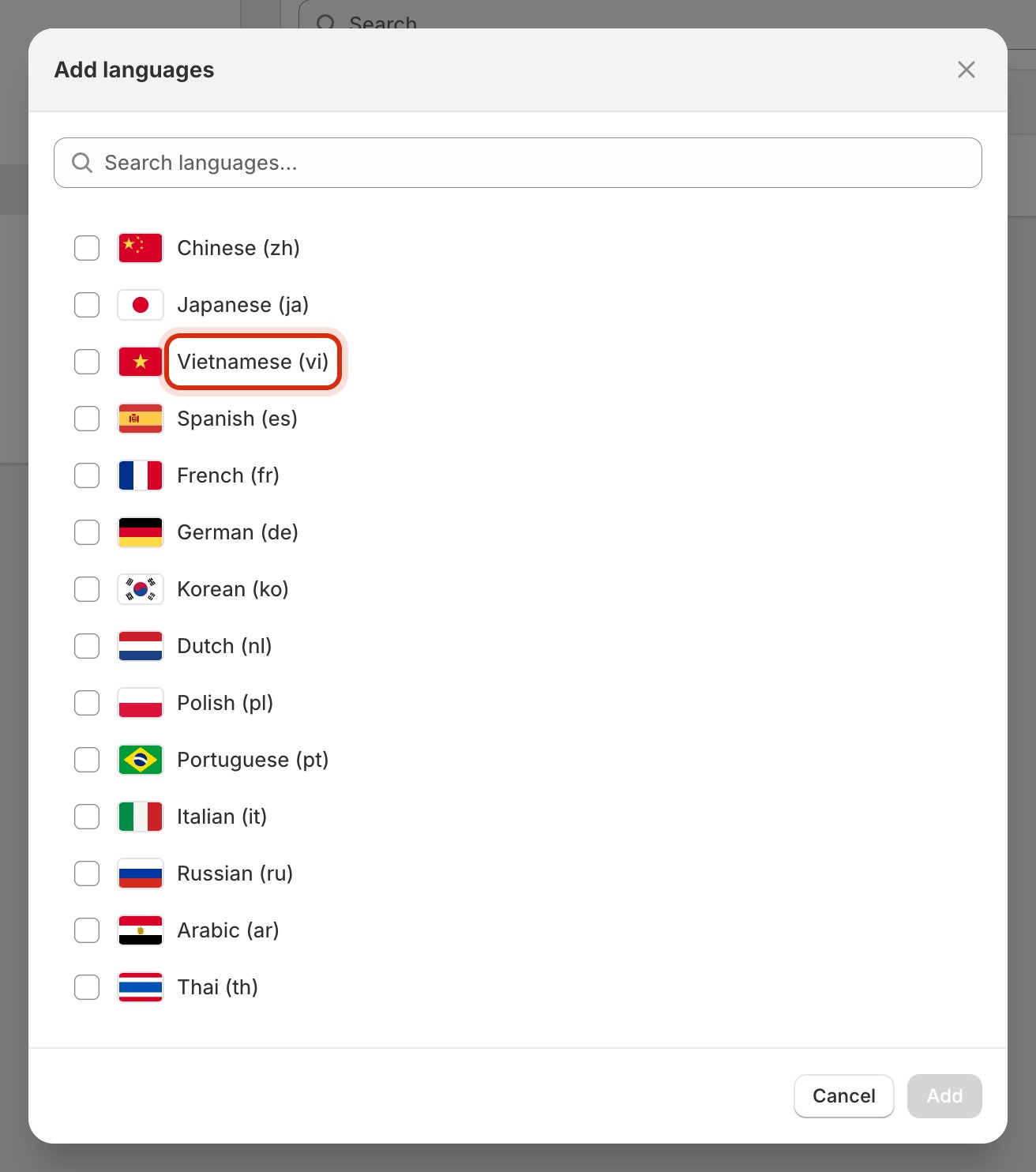 Fourteen languages are ready to pick from, each with the short code your storefront uses (`vi` for Vietnamese, `de` for German). Use the search box if the list is long.
## English is your starting point
English is marked **Default** and can't be removed. It is the wording you write your questions in, and every translation is a translation of it.
## Remove one
Click **Remove** on its row.
Removing a language removes the translations you had written in it. If you might sell there again later, it is cheaper to leave the language in place than to type it all out a second time.
## What happens next
Adding a language doesn't translate anything on its own. It adds a column, ready to be filled in.
Each option set is then translated on its own, which is where the words actually get written. See [Translate an option set](/translations/translate-an-option-set).
Add every language you plan to sell in before you start translating. Adding one later means going back through the option sets you already did to fill in the new column.
## Where to next
Words that must always translate the same way.
Fill in the languages you just added.
Fourteen languages are ready to pick from, each with the short code your storefront uses (`vi` for Vietnamese, `de` for German). Use the search box if the list is long.
## English is your starting point
English is marked **Default** and can't be removed. It is the wording you write your questions in, and every translation is a translation of it.
## Remove one
Click **Remove** on its row.
Removing a language removes the translations you had written in it. If you might sell there again later, it is cheaper to leave the language in place than to type it all out a second time.
## What happens next
Adding a language doesn't translate anything on its own. It adds a column, ready to be filled in.
Each option set is then translated on its own, which is where the words actually get written. See [Translate an option set](/translations/translate-an-option-set).
Add every language you plan to sell in before you start translating. Adding one later means going back through the option sets you already did to fill in the new column.
## Where to next
Words that must always translate the same way.
Fill in the languages you just added.