

Create it
On Assets, click Create.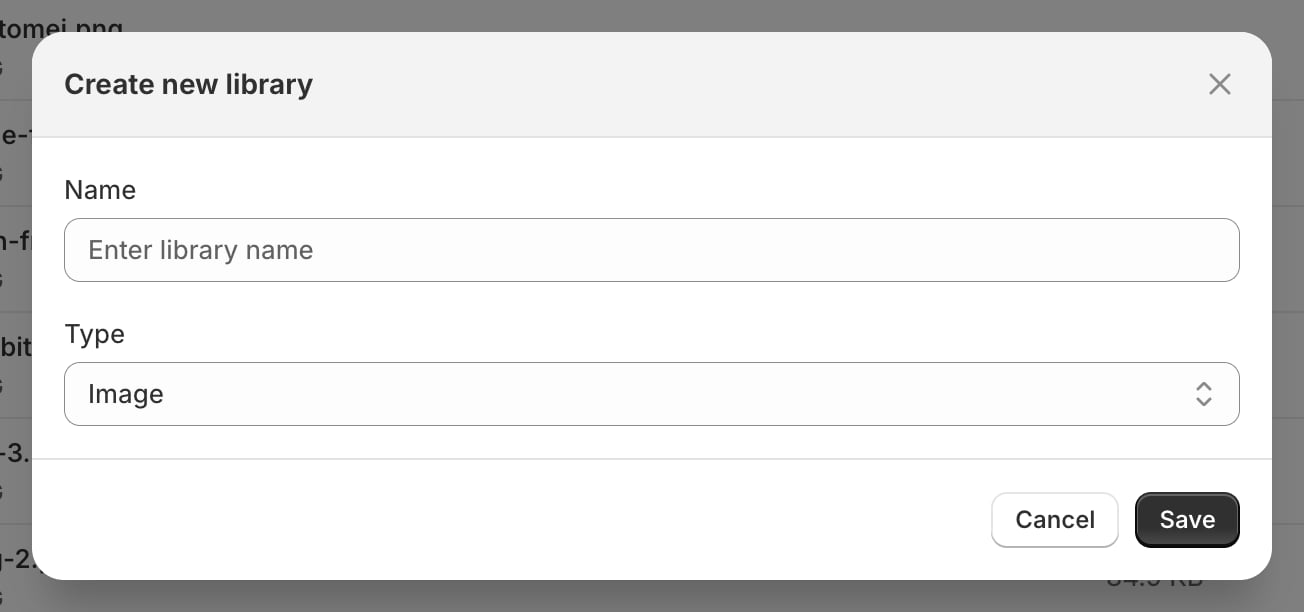
Name it and pick what it holds. Choosing Color adds a mode field below.
Save creates it and takes you straight in, with a banner offering to add another.
Fill it with items, or split it into categories
Inside a library you have two ways to organise, and Customei asks you to pick one.1
Items straight in
Best for most libraries. Click Add media (or Add font, Add vector, Add mockup, Add color depending on the kind) and the things you upload sit directly in the library.
2
Categories, with items inside each
Best when one box really holds several sets, for instance Pets split into Dogs, Cats and Birds. Click Add category, then open a category and add items inside it.
A library holds one or the other, not both. Once it has items, Add category disappears. Once it has categories, you add items inside a category rather than at the top. An empty library offers you both, so decide before your first upload.
Rename it, or give it a cover
The … menu on the Assets list has Settings.
Without a cover, the list stacks the first few items as a thumbnail, which is usually enough.
Duplicate it
Duplicate on the row menu copies the library and everything in it. Handy when you want a seasonal variation of a set without touching the original.Delete it
Delete on the library page, or Move to trash on the row menu. Either way it goes to Trash for 30 days and can be restored.Where to next
Upload and import
Fill your new library with pictures, fonts or colours.
Assets
Back to the storeroom.