

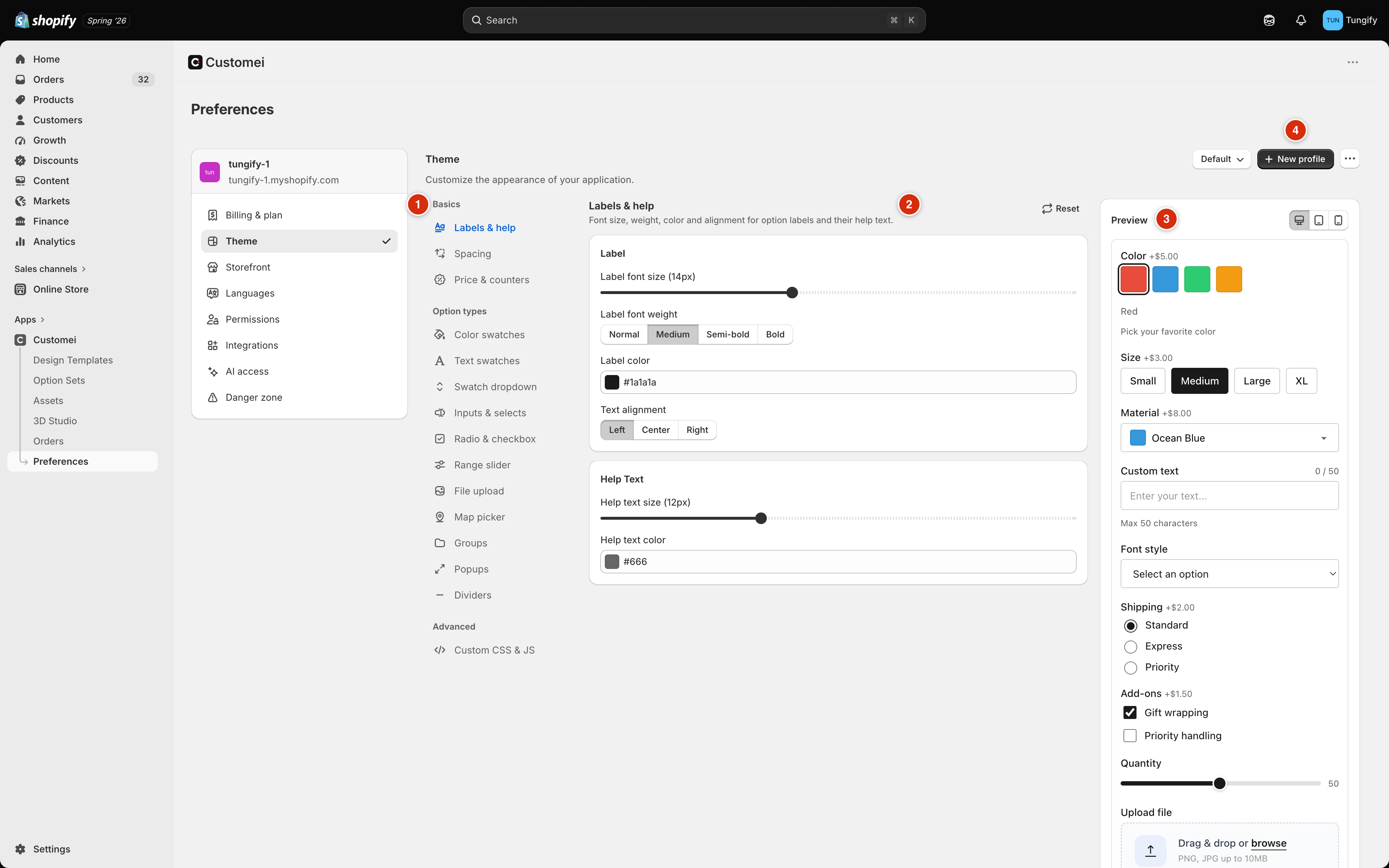
1 what you can style, 2 the settings for it, 3 a live preview, 4 which saved look you're editing.
How you work here
1
Pick what you want to change
The list on the left is a list of things on the form, not a list of pages. Basics is the stuff every question shares. Option types is one entry per kind of question.
2
Change the settings
Sliders for sizes, colour boxes for colours, small button rows for choices like Left / Center / Right.
3
Watch the preview
The panel on the right is a working form. It changes as you drag.
4
Save
A bar appears at the top with Save and Cancel. Save it and your storefront picks up the new look within a few seconds. You don’t have to publish your option sets again.
Basics: what every question shares
Start here. These three cover the things a customer notices first.Option types: one kind of question at a time
Each entry under Option types styles one kind of question wherever it appears in your store.
Pick one and the settings are grouped into small cards: the size and shape, the colours, and how it looks when the customer interacts with it.
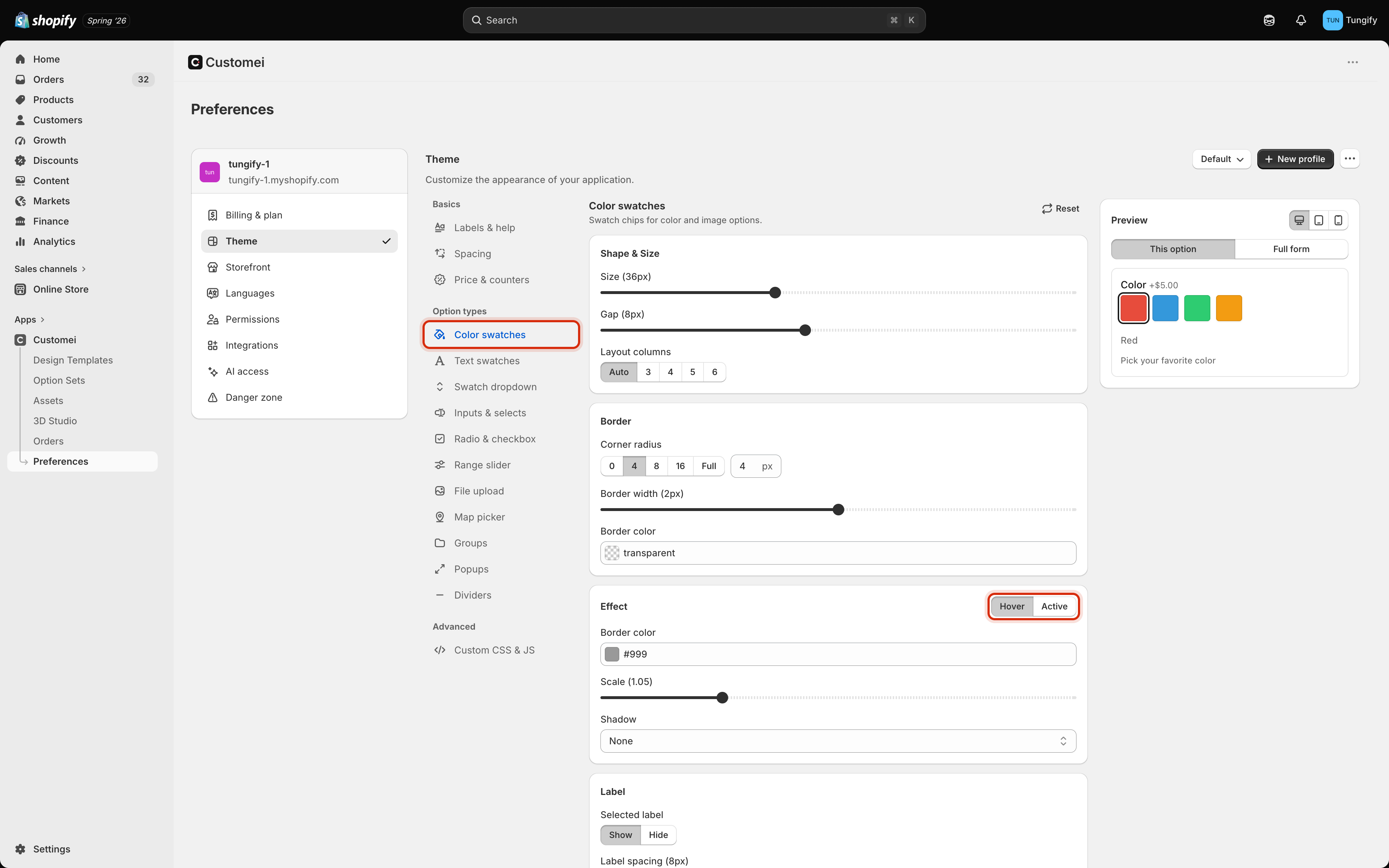
Colour swatches. The Effect card has two states behind one pair of buttons.
- Hover is how it looks while the customer’s mouse is over it.
- Active is how it looks once they have chosen it.
The live preview
The preview is not a picture, it is a working form with sample questions in it. Click the chips, type in the box.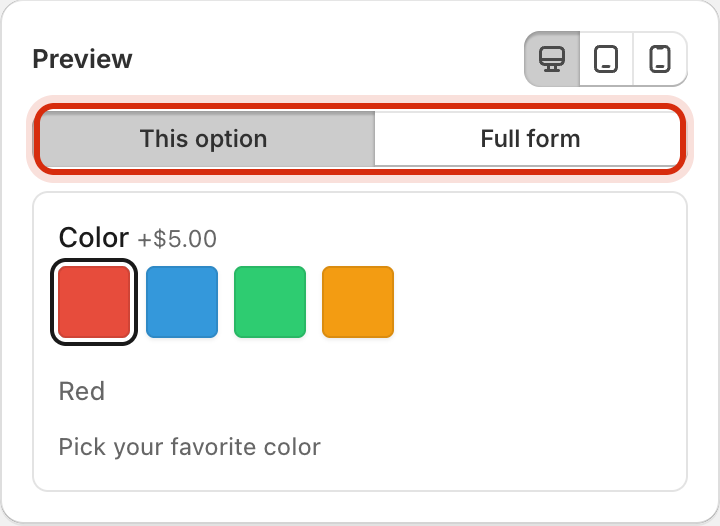
Two views, and three screen widths.
- This option shows just the kind of question you are editing, so nothing else distracts you.
- Full form shows a whole form with every kind of question in it, which is how you catch a colour that looks fine alone and clashes in a crowd.
- The three small icons at the top right shrink the preview to a desktop, a tablet and a phone width. Check the phone before you save; that is where most of your customers are.
Saving more than one look
The names beside the title are saved looks, called profiles. A profile is one complete set of the settings on this page. Most stores need one. A second is handy for a seasonal look you plan to switch to and back from.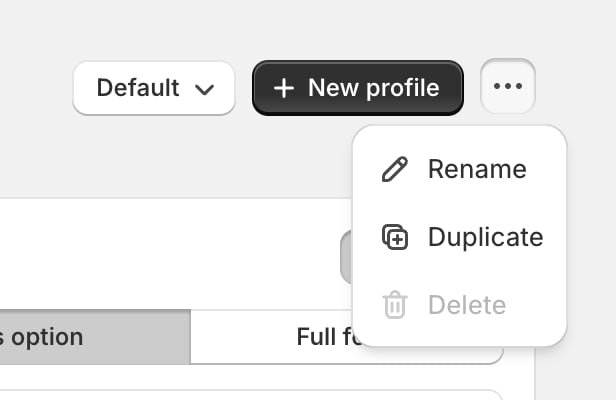
The saved look you're editing, and the menu for renaming, copying or deleting it.
- The dropdown on the left shows which profile is live. Switch it and your storefront changes to that look right away.
- New profile makes another one, asks for a name, and switches to it.
- The … menu holds Rename, Duplicate (a copy to experiment on, so your live look stays untouched) and Delete.
- Delete is greyed out when you only have one profile, because something has to be live.
These buttons are all switched off while you have unsaved changes. Save or Cancel first, then switch or copy. It stops you from carrying half-finished edits into another profile by accident.
Where to next
Where the design shows on your product page
The other half of how your product page is arranged.
Check your options before customers do
Try the real thing, on your own option set.