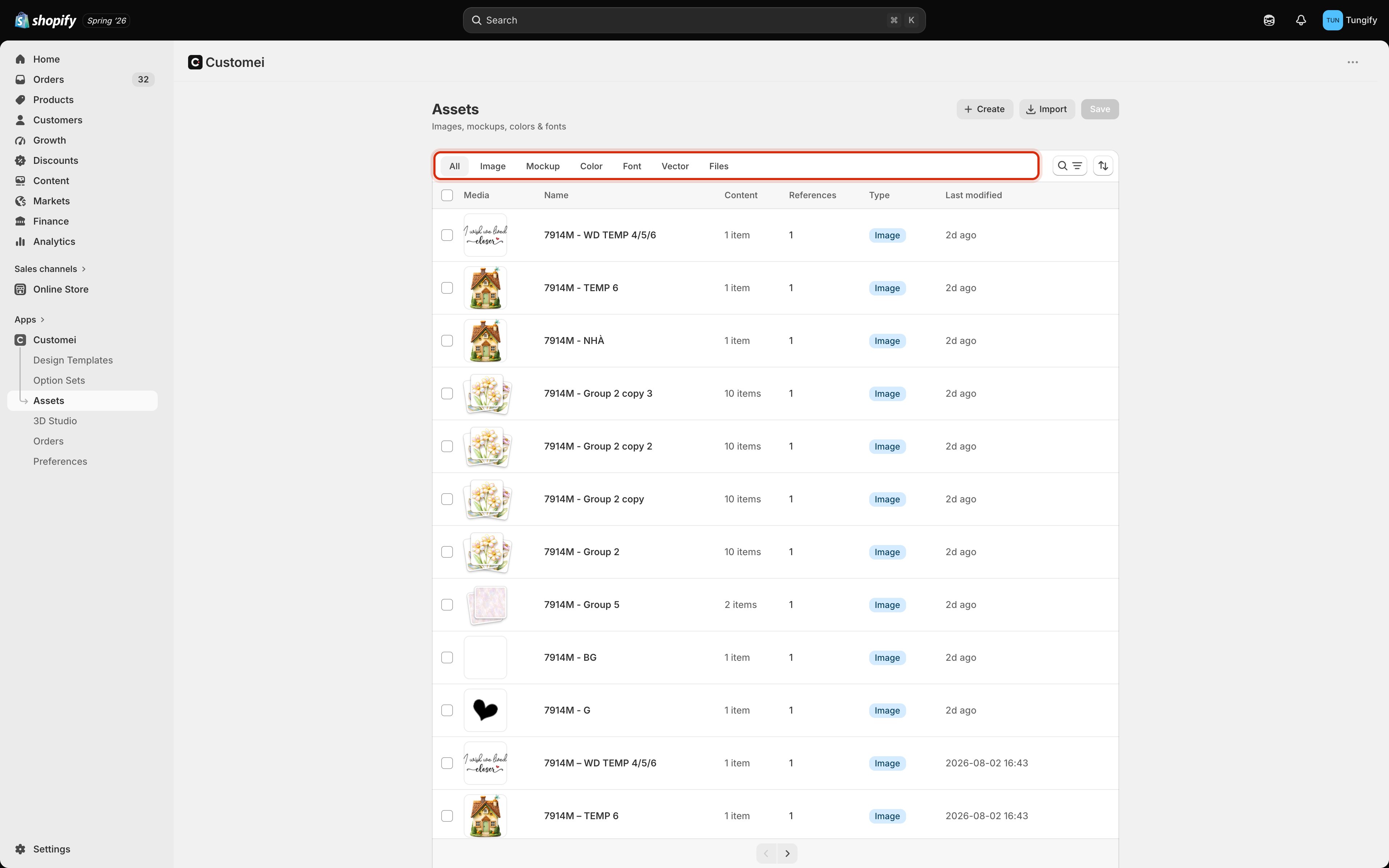
Assets is your storeroom. Everything a design template can pull in lives here: the pictures a layer can swap between, the product photos your previews sit on, your brand colours, your fonts. You group them into libraries. A library is just a named box of one kind of thing, for example Dog breeds holding 24 dog pictures. A design template layer points at a library, and from then on every one of those pictures is a choice your customer can pick. Open it from Assets in the left menu.
The Assets page inside Shopify admin, showing the tab strip All, Image, Mockup, Color, Font, Vector, Files and a table of libraries with Media, Name, Content, References and Last modified columns.

The Assets page. One row per library, with what it holds and how many design templates use it.

The tabs

Customei remembers which tab you were last on, so Assets may not open on All.

The five kinds of library

Pick the kind when you create a library. It decides what you can put in and where it can be used.
Colour mode is part of the kind: an RGB library suits anything shown on screen, a CMYK library matches what your printer expects. Choose it when you create the library.

Reading a row

A dash in References means either nothing uses this library or Customei hasn’t finished counting. It never shows a bare 0, because “nothing uses this” is a dangerous thing to guess at just before you delete something. Click the number and you get the list.
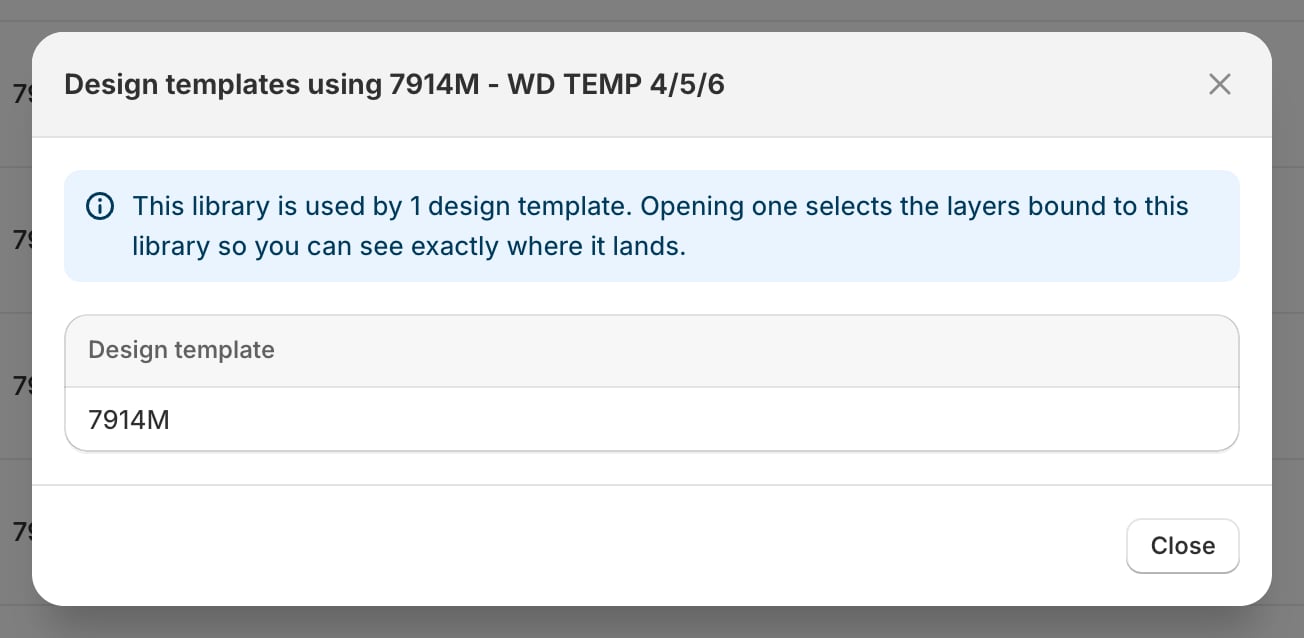
A dialog titled Design templates using this library, explaining that opening one selects the layers bound to the library, above a table listing the one design template that uses it.

Which design templates pull from this library. Open one and it selects the layers bound to it.

Do that before you rename, empty or delete anything. Opening a template from this list lands you on the exact layers that draw from the library, which is much faster than hunting through the Layers panel. The menu at the end of a row has Edit, Settings, Duplicate and Move to trash.
Use the search icon above the table to find a library by name. With dozens of libraries that beats scrolling.

Who is using this library

Open a library and a blue banner at the top tells you what depends on it: Used in N design templates, with a View button. Opening a template from there selects the layers bound to this library, so you can see exactly where these pictures land.
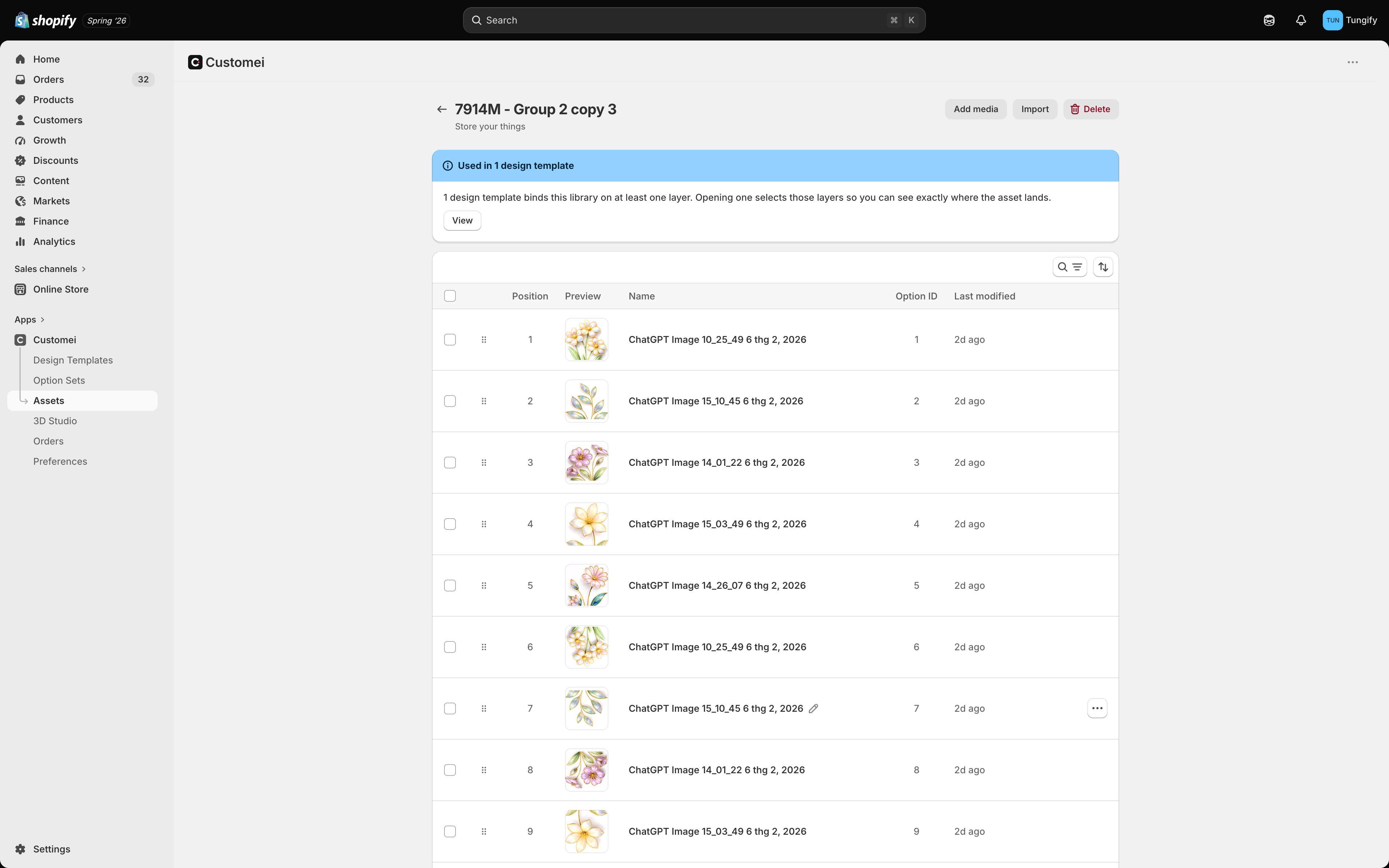
A library detail page with a blue Used in 1 design template banner and a View button above a table of items with Position, Preview, Name, Option ID and Last modified columns.

A library, its Used in banner, and its items with the Option ID each one carries.

If a library also feeds option sets through a design template, a second banner says Auto-syncs to N option sets and lists them, with how many of their questions come from this library and how many products they’re on. That’s the useful bit: add a picture here and every one of those option sets can offer it, without you editing each one by hand. Options that keep themselves up to date covers the other end of that link.

Trash and restore

Move to trash takes a library out of your way without destroying it. Trash keeps it for 30 days, then it goes for good.
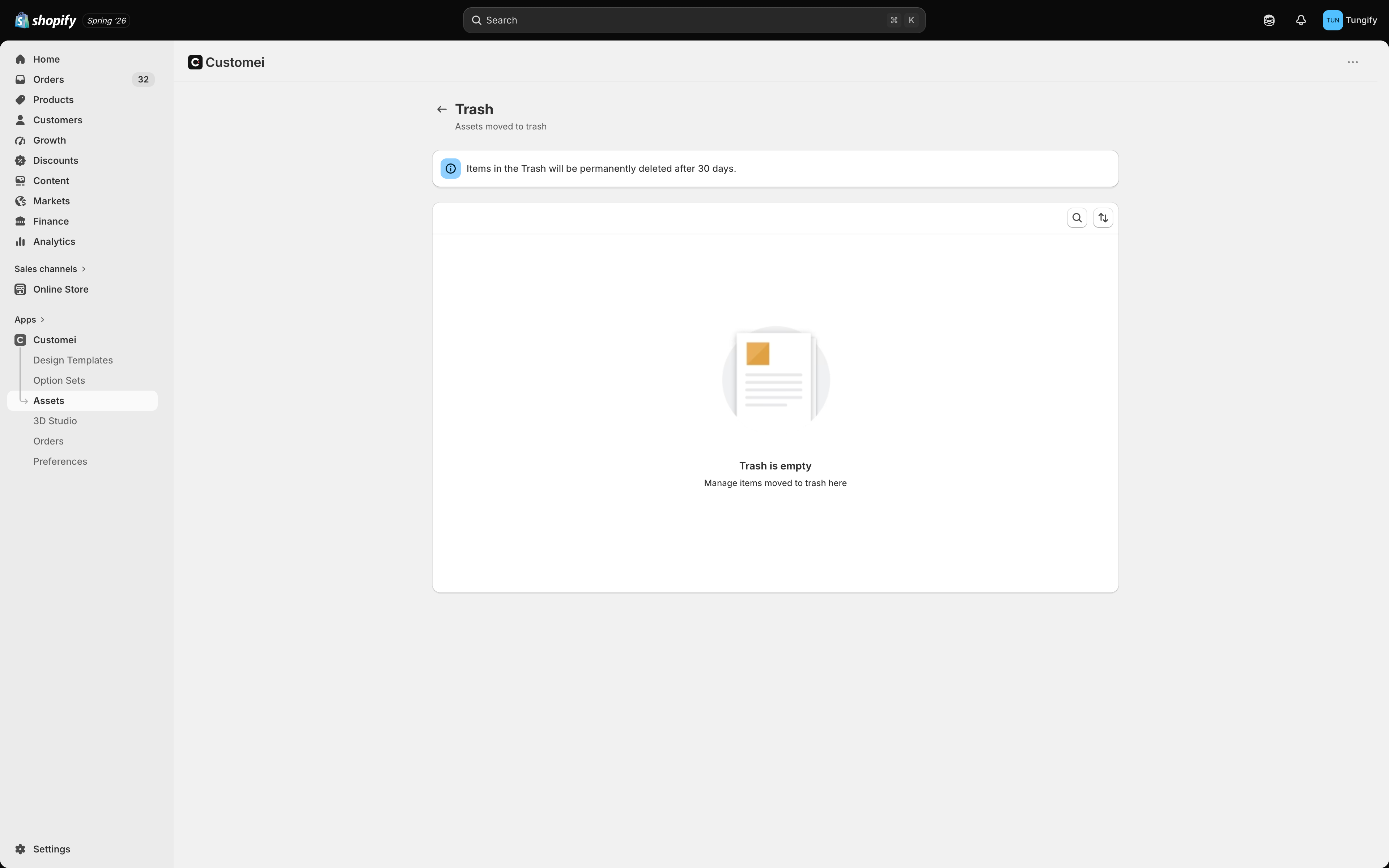
The Assets Trash page with a banner reading Items in the Trash will be permanently deleted after 30 days above an empty state.

Trash. Restore puts a library back exactly as it was.

A library still in use by a design template is not protected. Move it to trash and the layers pointing at it lose their choices, so check the References count first.

Where to next

Create a library

Make a box, choose its kind, and organise it with categories.

Upload and import

Add pictures, fonts and colours, or bring in a whole ZIP.

Your files

The Files tab: what uses a file, and deleting safely.

Connect options to your design

How a library becomes a set of choices for your customer.