

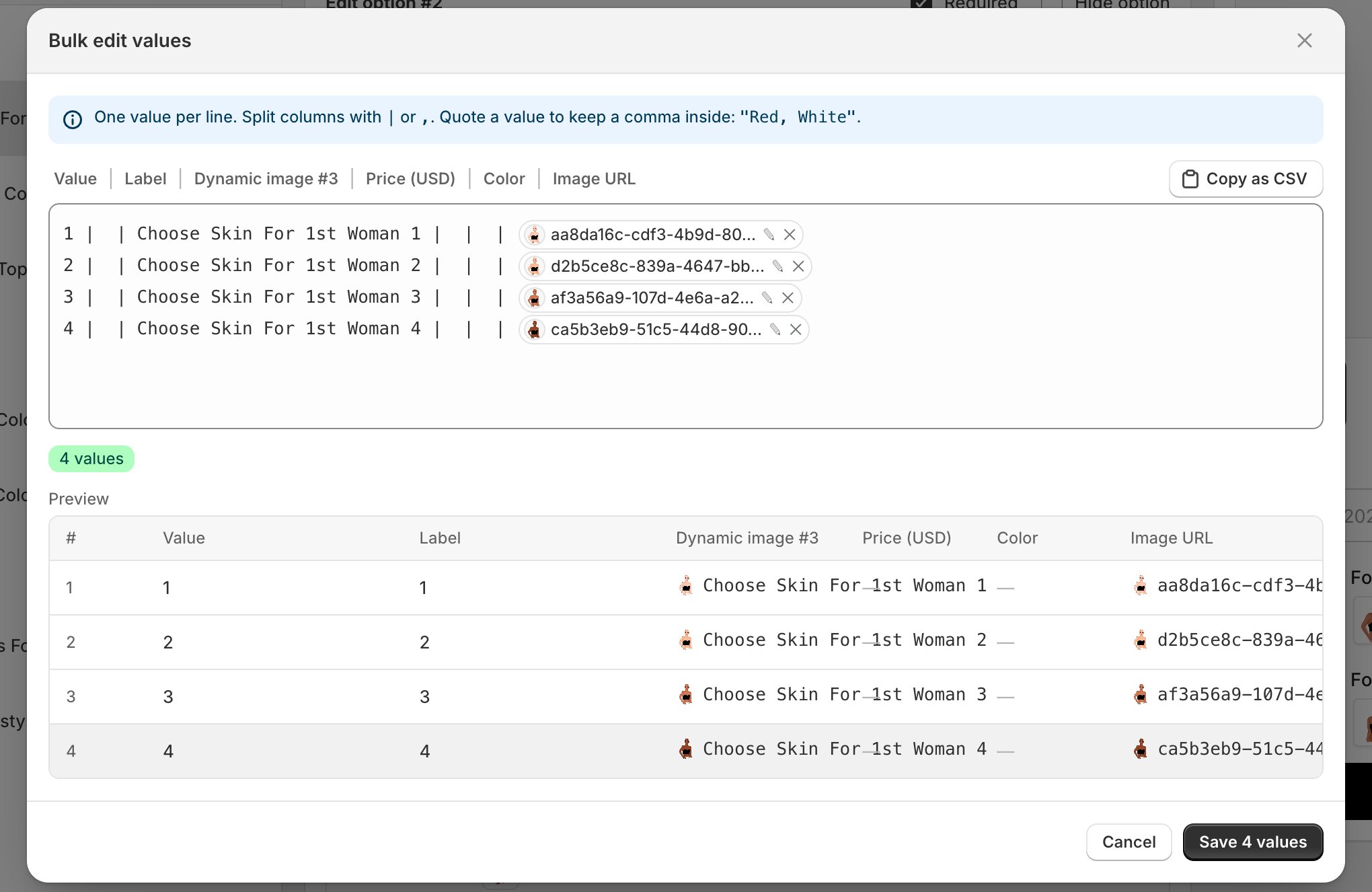
The bulk editor. You type the list on the left, and the preview underneath shows how it will be saved.
How to write the list
One value per line. Separate the columns on a line with either a vertical bar| or a comma.
The columns run in the order shown above the box, which depends on the type of option you are editing. A simple dropdown has fewer columns than a swatch tied to a design.
You do not have to fill every column. Leave one empty and it keeps whatever it had.
If a value itself contains a comma, wrap it in quotes so it is not read as two columns:
"Red, White".Check the preview before saving
Underneath the box, a green badge counts how many values were understood, and the Preview table shows exactly how each line will be saved, column by column. Read that table before you save. It is the fastest way to catch a stray comma that has quietly split one value into two. When it looks right, click Save. The button tells you how many values you are about to save, which is a useful last check against a miscount.Getting your list out again
Copy as CSV copies the current list to your clipboard in spreadsheet form. That is handy for:- Editing a long list in a spreadsheet, then pasting it back.
- Copying a set of values from one option to another.
- Keeping a backup before a big change.
Quick add
Next to Bulk edit sits Quick add. Where bulk edit is for typing a list yourself, quick add pulls values in from a library you have already built in your Assets, so a palette or a size run you use across products only has to be entered once.Where to next
Manage your values
Reorder, rename, and set a default.
Charge extra for a choice
Put a surcharge on a specific value.
Build your options
The full set of option types.
Connect to a template
Point values at layers in your design.