

Step 1. Attach your products
Open the option set and switch to the Config product tab beside Edit option, then click Assign products.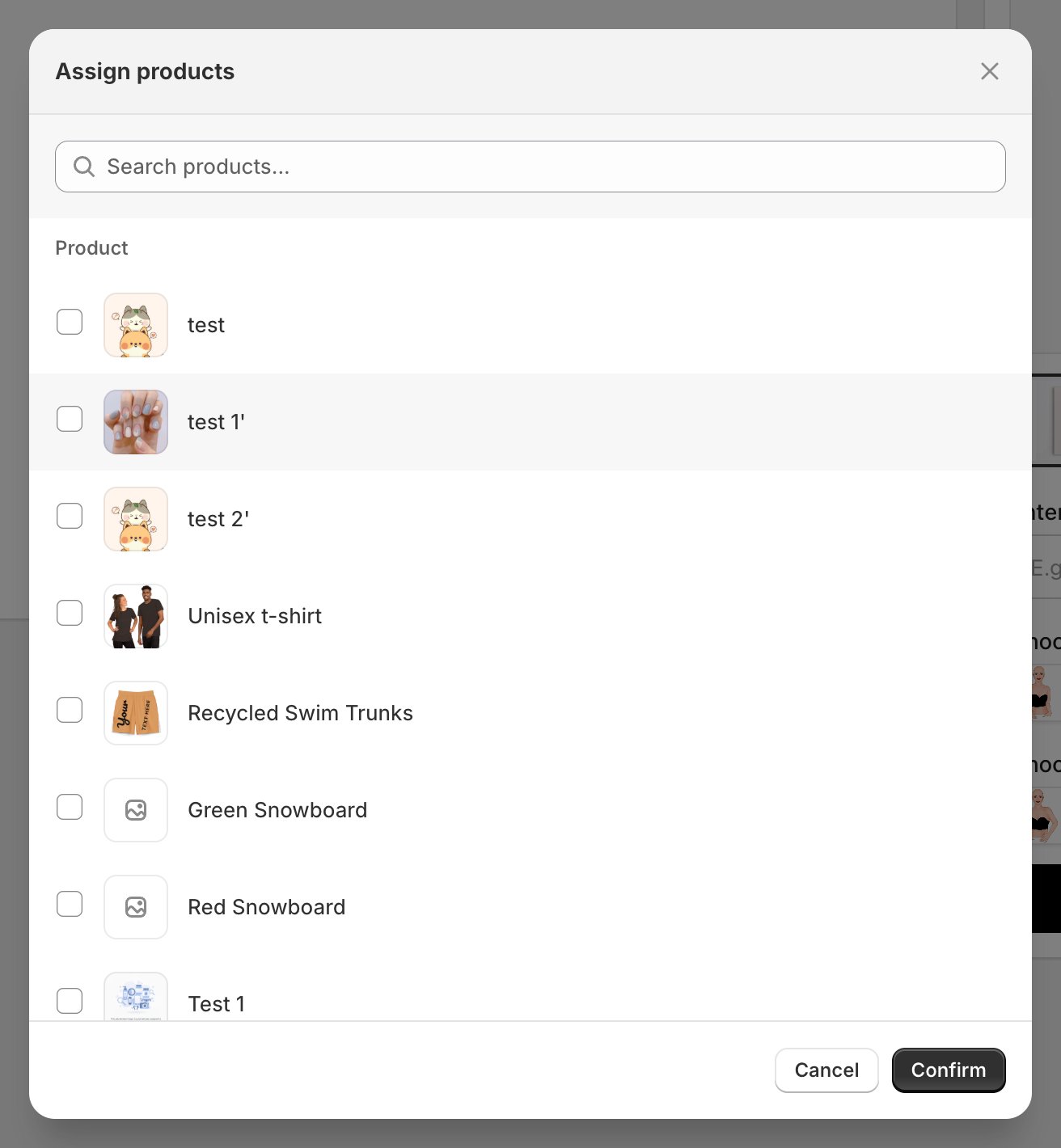
Tick every product that should use this option set.
Once products are attached, the Config product tab is also where you fine-tune each one individually, including which design layers change per Shopify variant.
Step 2. Publish
Click Publish in the header. Customei pushes your options to every attached product and shows you the result product by product.
A published option set. The badge beside the name tells you where it stands.
Reading the status
The Products page shows where every product stands at a glance.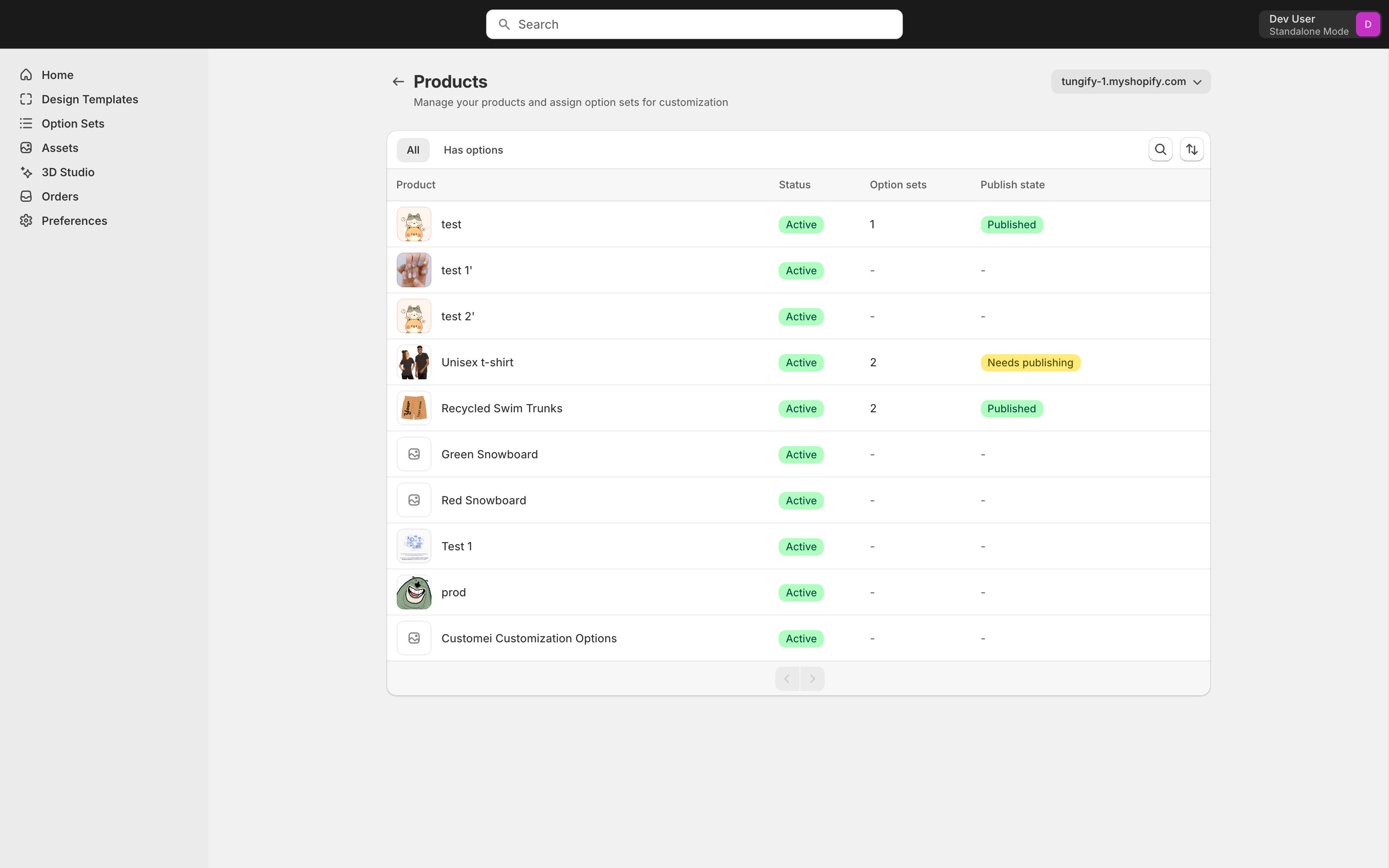
The Publish state column on the Products page.
Making changes later
Editing a live option set is safe. Your changes are saved as a draft and your storefront keeps serving the last published version until you publish again, so shoppers never catch you mid-edit. The same goes for the design template: edit the artwork, save, and publish the option set to push the new look out.Where to next
Build your options
Add more options or adjust the ones you have.
Connect options to your design
Wire a new option into the artwork.