

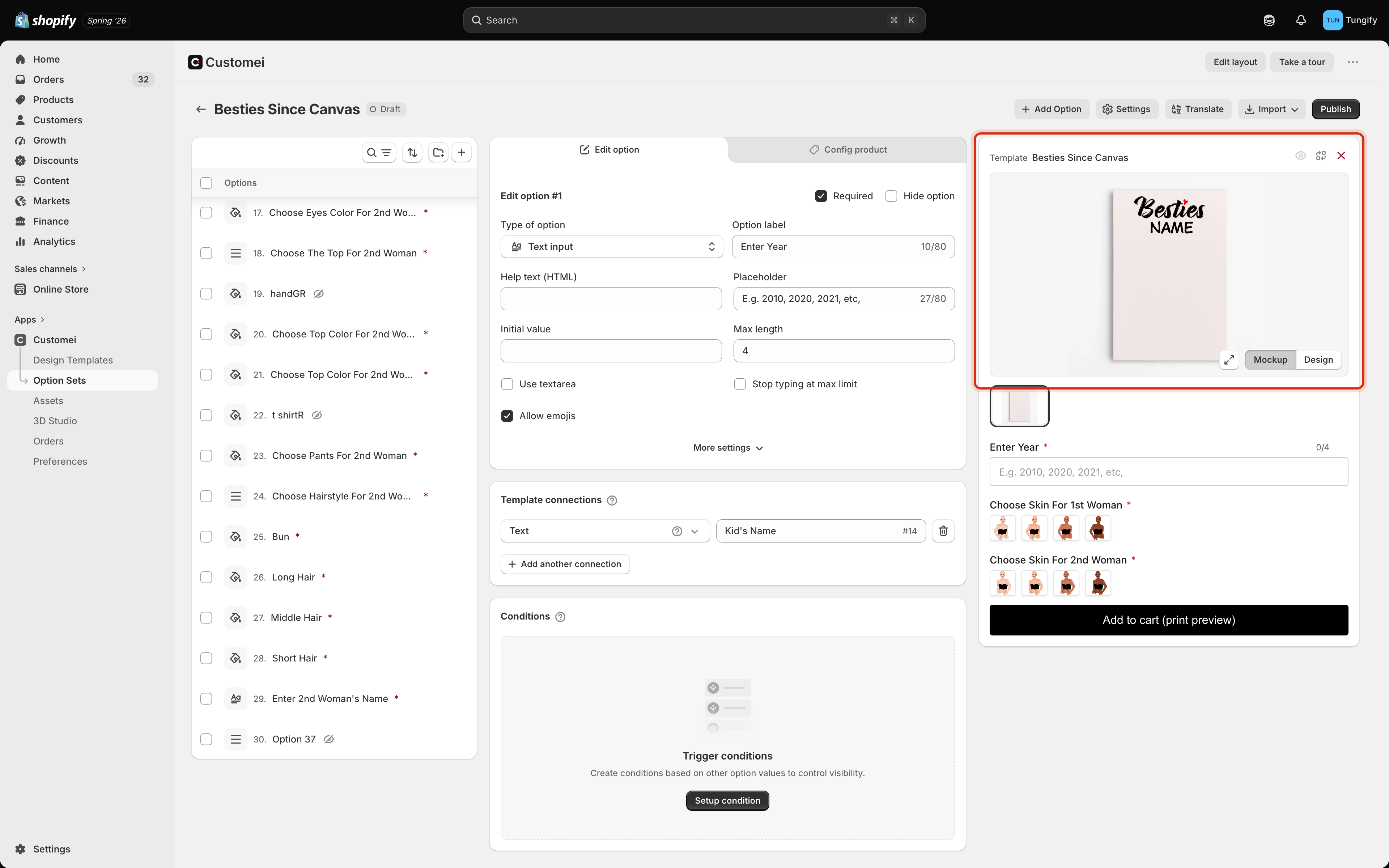
The preview pane. The picture at the top is outlined; your questions are underneath it.
The two views
The Mockup / Design toggle switches what the picture shows.
Check both. Mockup tells you whether the product looks appealing; Design tells you whether the artwork is right. A name that looks fine wrapped onto a mug can still be off-centre on the flat design.
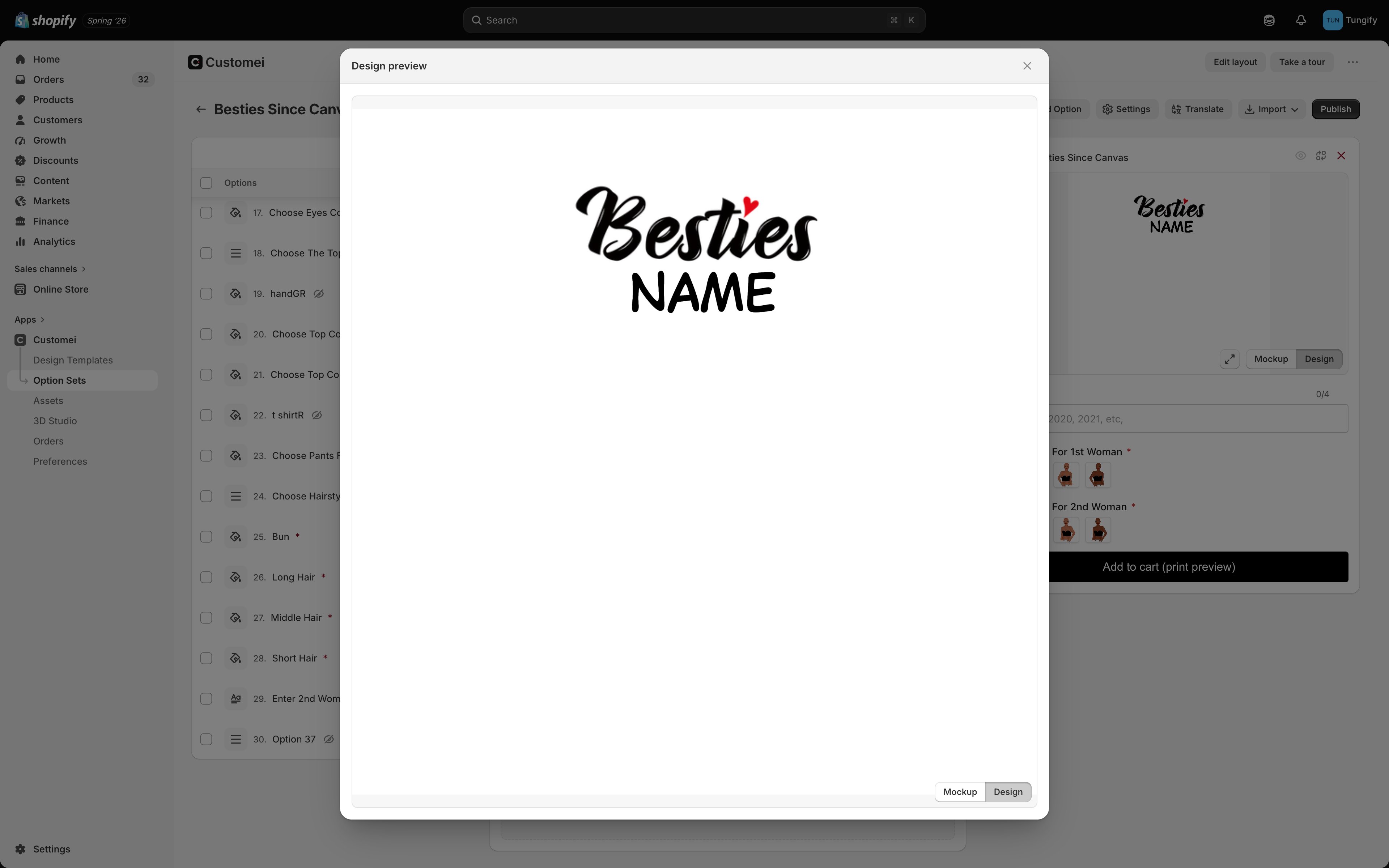
Design view, expanded.
Answer your own questions
Fill the form in the preview the way a shopper would. Type a long name, pick the choice you expect to be least popular, leave an optional question empty. Things you will catch in a minute:- text that overflows the space you designed for
- a choice that changes nothing, because its connection points at the wrong layer
- a question that shows when it shouldn’t, because a condition matches the label instead of the value
- a required question you forgot, blocking the cart
Check the print file
Add to cart (print preview) at the bottom of the form does not sell anything. It builds the print file from your answers and shows it to you. It is the same file that reaches you when a real order comes in. Do this once before publishing a new option set. It is the only check that covers the whole chain: your questions, their connections, and the design template behind them.The pane header
Four small controls sit beside the template name at the top of the pane.Where to next
Assign products and go live
Once the preview looks right, publish it.
Connect options to your design
Fix an answer that changes nothing.