

Start from a ready-made layout
Set an option’s type to Custom swatch, then click Templates.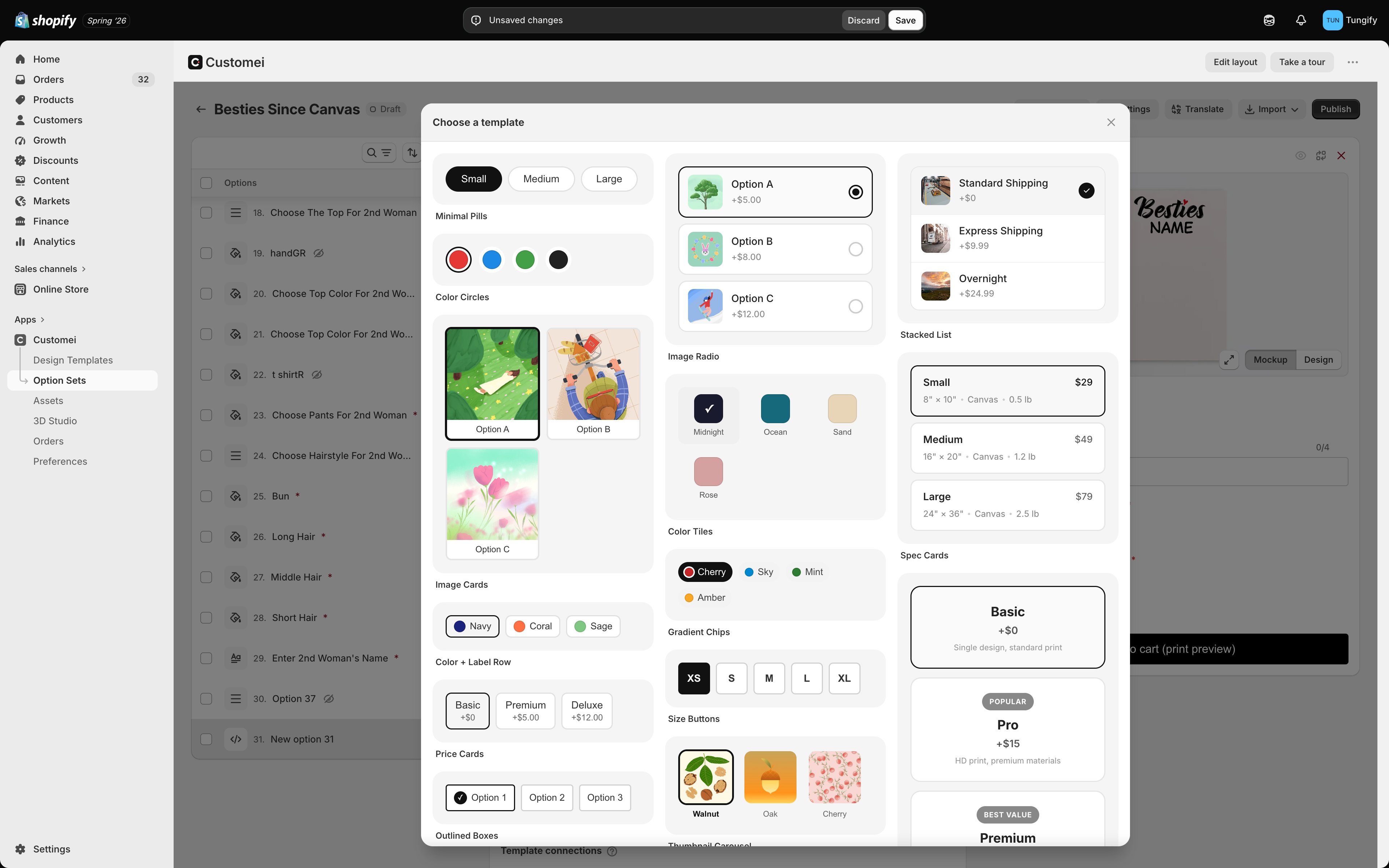
17 finished layouts, each shown as it will look to a shopper.
Build your own
If none of the 17 fit, the same card holds three tabs you can edit.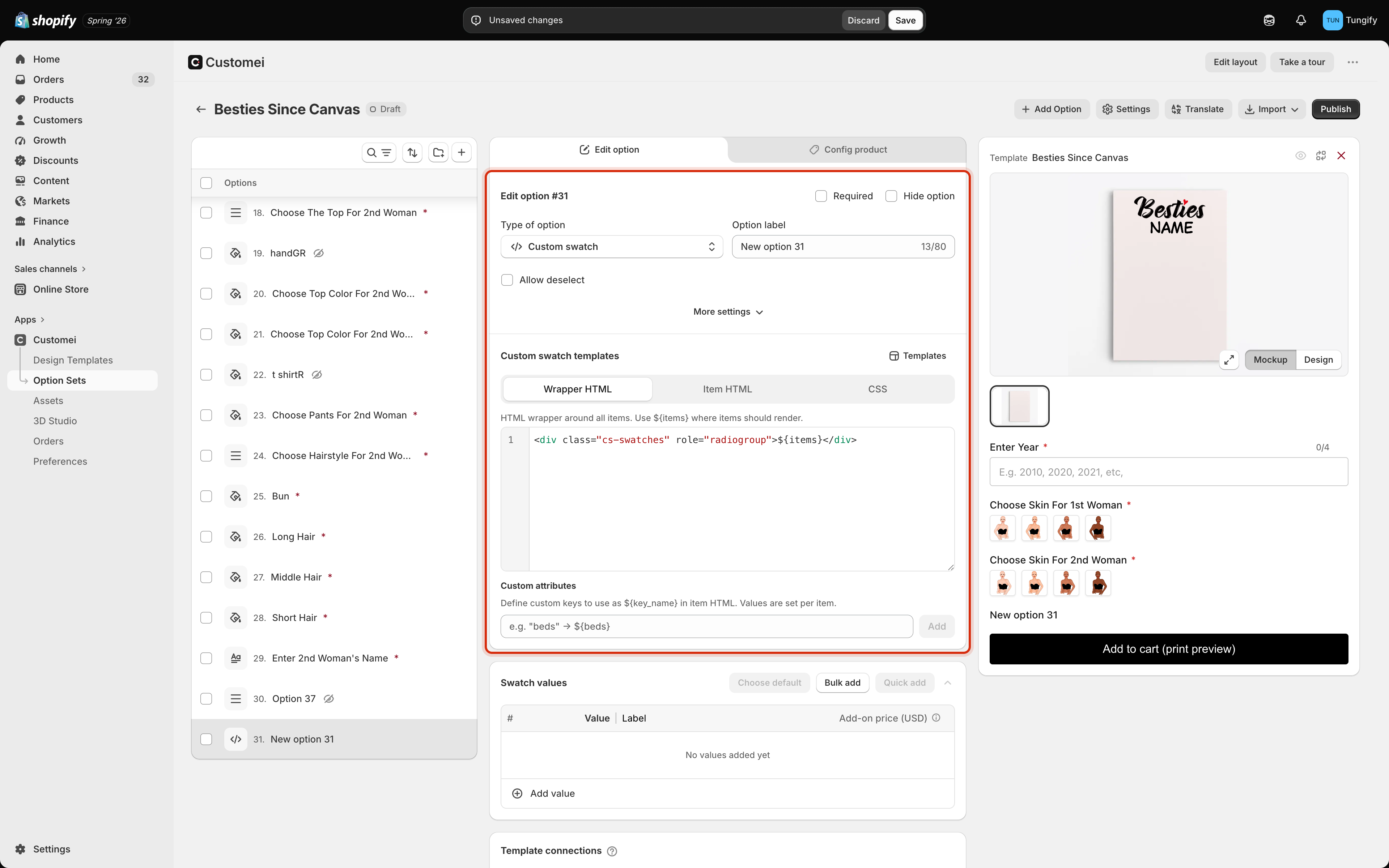
The custom swatch editor, with the ready-made layouts behind the Templates button.
Inside Item HTML you can drop in what each choice knows about itself, written as
${...}: its label, its value, its picture, its extra price.
Custom attributes lets you invent your own. Add a key called beds and every choice gets a beds box in the values table, which you can then place in the layout as ${beds}. That is how the Spec Cards layout shows a size and a weight under each name.
This tab is the one place in the merchant docs where you will meet HTML and CSS. If that isn’t your thing, stay with the ready-made layouts. They cover almost every case, and they were built with the same tools.
Adding the choices
A custom swatch fills its layout from the ordinary values table below the editor, exactly like the other swatch types: one row per choice, with a value, a label, an optional picture and an optional extra price. See lists and swatches and managing values.Where to next
Lists and swatches
The built-in ways to show a set of choices.
Groups and layout
Arrange a long form so it doesn’t scare shoppers off.