

Open the translator
Open the option set and click Translate in the top bar. You can also use Translate on the option set’s row in the list.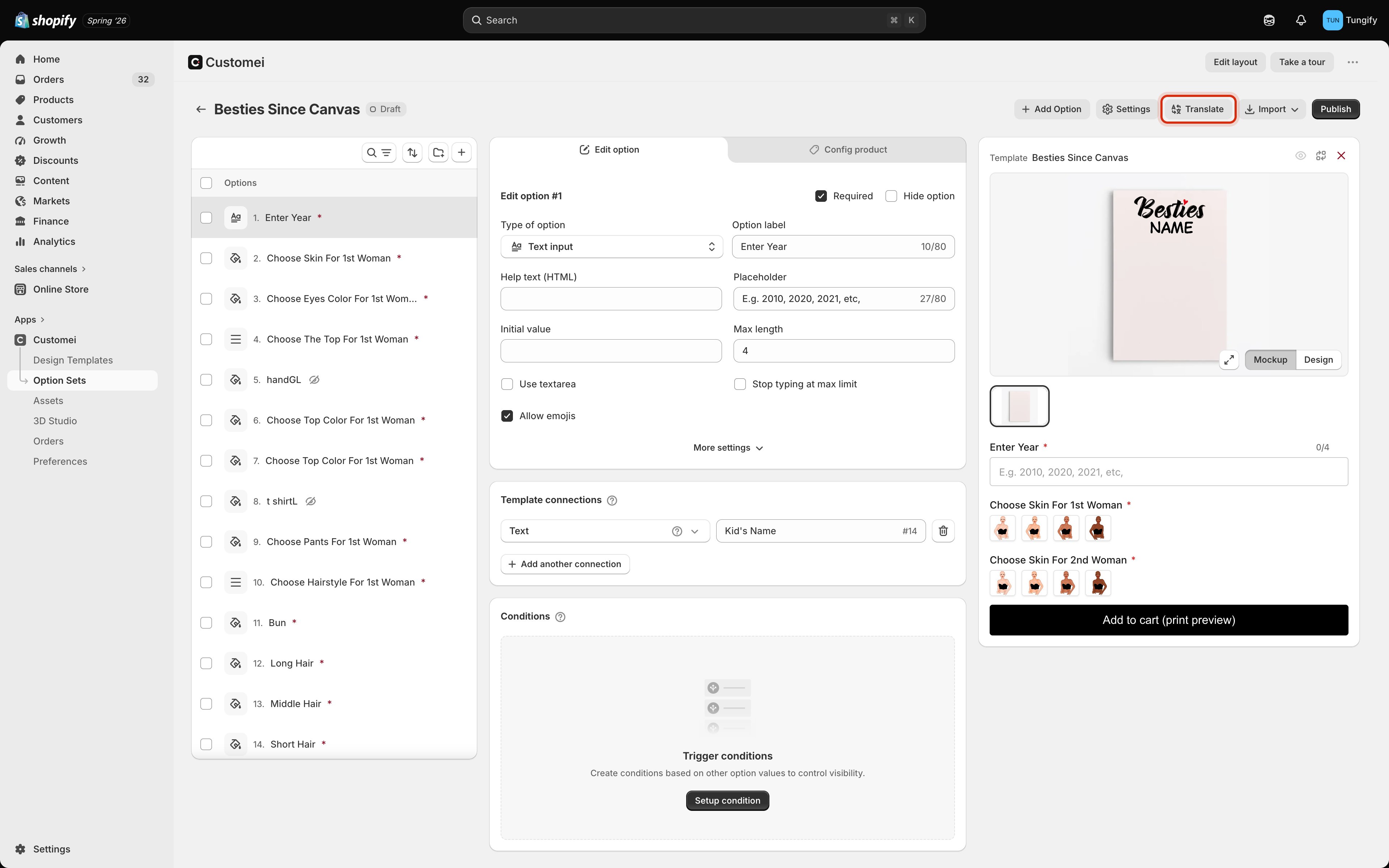
Translate, in the option set's top bar.
Read the table
Everything a customer sees is a row. Every language you added is a column.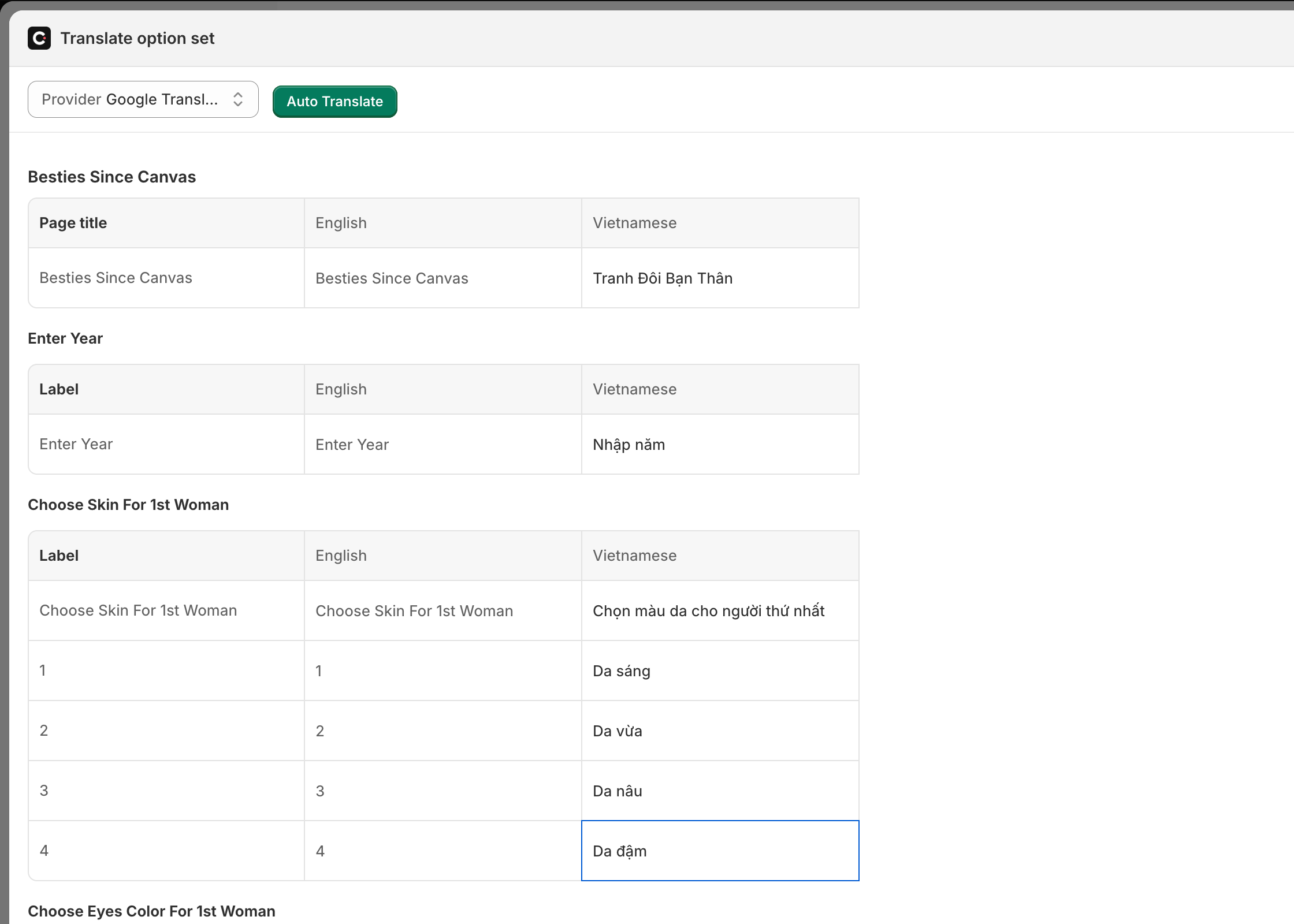
Your original wording on the left, one column per language. Grey text is the original showing through.
- the name of the option set,
- the label of every question,
- every choice inside a question,
- the extra bits of wording attached to a question, like help text and placeholders.
Let Customei draft it
If you’d rather not type everything, pick a translation service from Provider and click Auto Translate.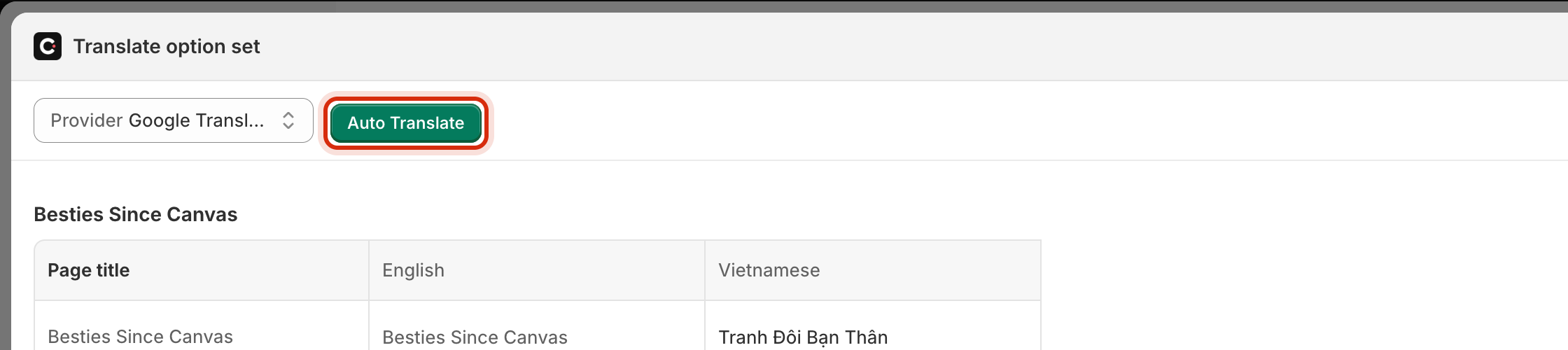
Pick a service, then let it draft every language at once.
Drafted translations are a starting point, not a final answer. Read them before you save, especially short labels: a service has no way of knowing that Top means the shirt and not the direction.
Change your original wording later
If you edit an English label after translating it, Customei asks whether you want to redo the translations for that row in every language. Say yes and it drafts them again; say no and your old translations stay as they are.Where to next
Fixed phrases
Lock down the words that must not vary.
Add your languages
Add another column.
Build your options
The questions behind these rows.
Assign products and go live
Publish so shoppers see the change.